Tesla Roadster AI Video
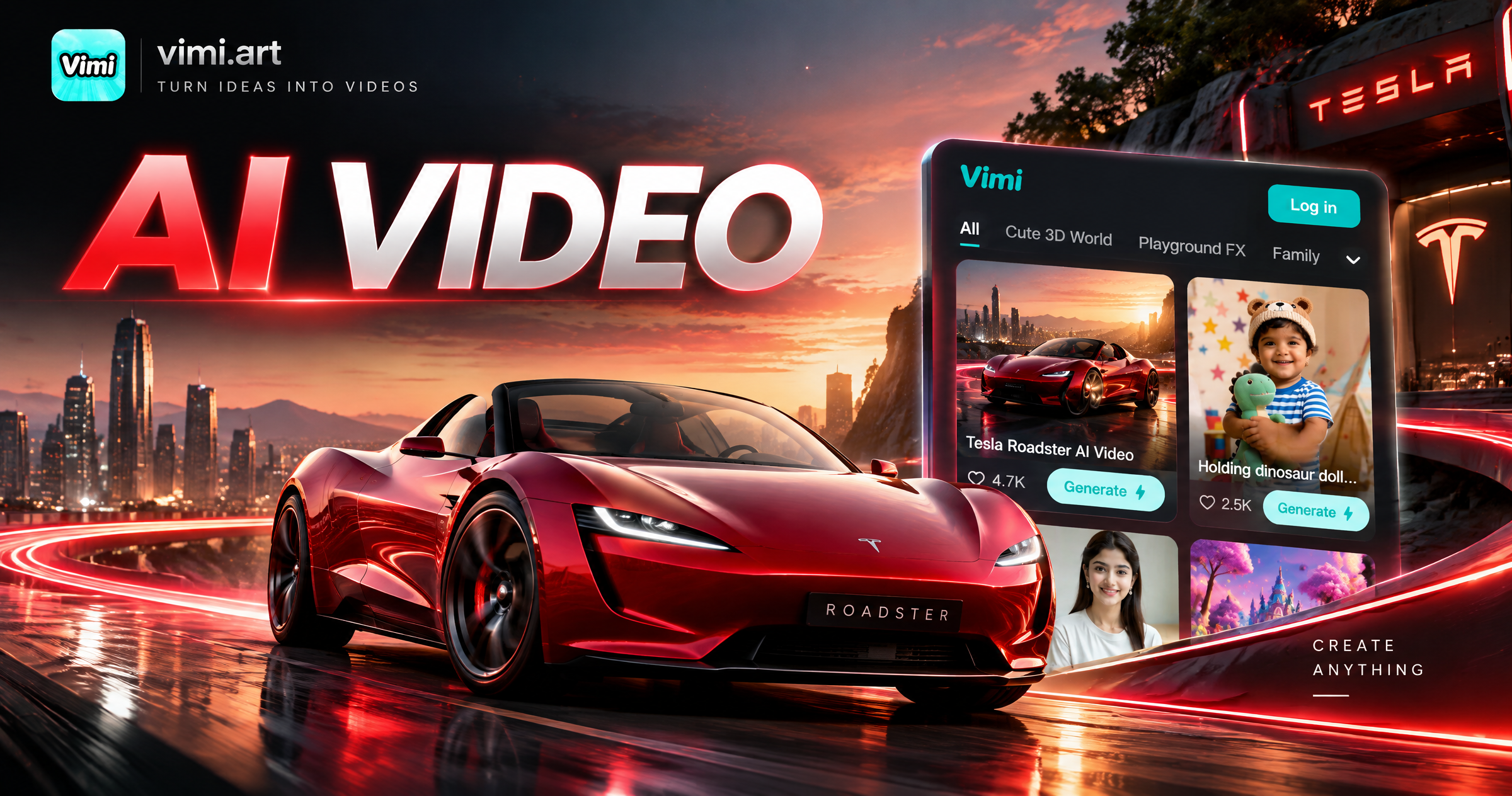
Choose the Tesla Roadster AI Video Filter
Choose a Roadster template that fits the scene and mood you want. Upload one clear car photo to see the clip before you create.
Vimi Tesla Roadster AI Video Filter Picks
These picks focus on car motion, garage lighting, and road scenes. Each template keeps the Roadster body shape clear while adding short camera moves for social posts.
Key Features of Vimi Tesla Roadster AI Video
Explore the main controls in this filter and see how each option quickly changes car motion, framing, and output length.
 Before
Template Based Car Motion
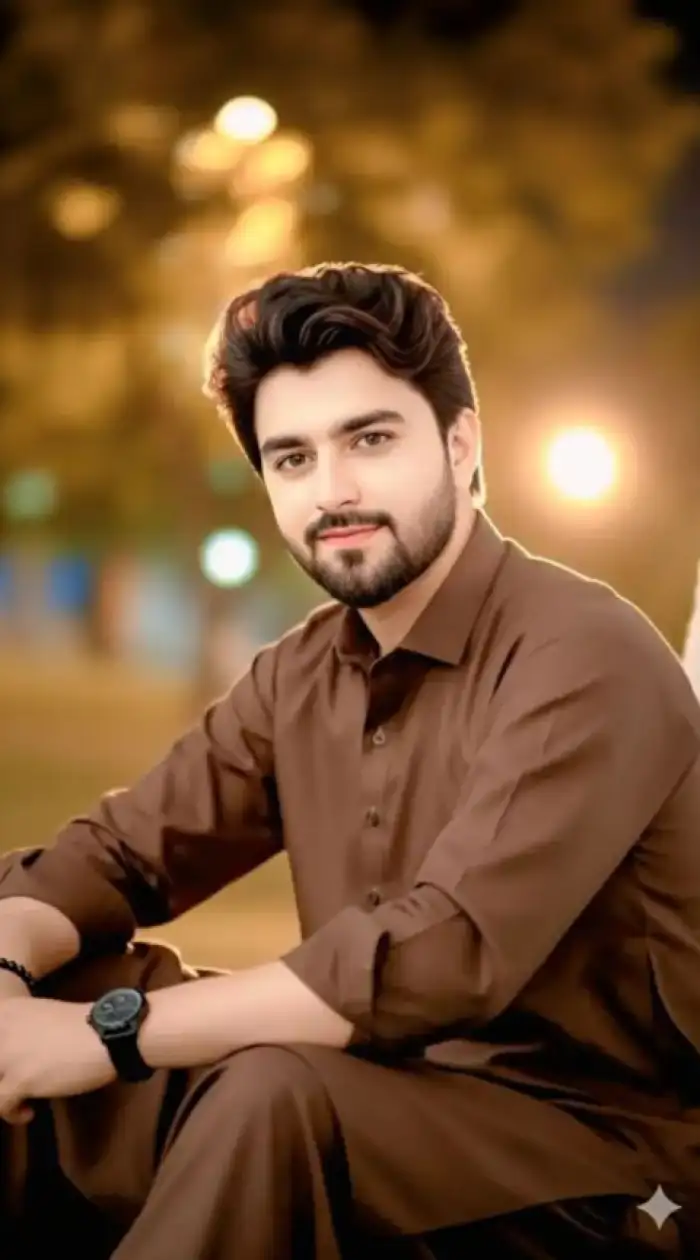
Pick a Roadster template and upload one clear car photo. Vimi adds short camera moves, wheel motion, and road blur while keeping the body shape readable. The app completes the first clip in about 10 to 20 seconds. You can then adjust the template or try a second style.
BeforeTemplate Based Car Motion
Pick a Roadster template and upload one clear car photo. Vimi adds short camera moves, wheel motion, and road blur while keeping the body shape readable. The app completes the first clip in about 10 to 20 seconds. You can then adjust the template or try a second style.
 Before
Roadster Body Shape Retention
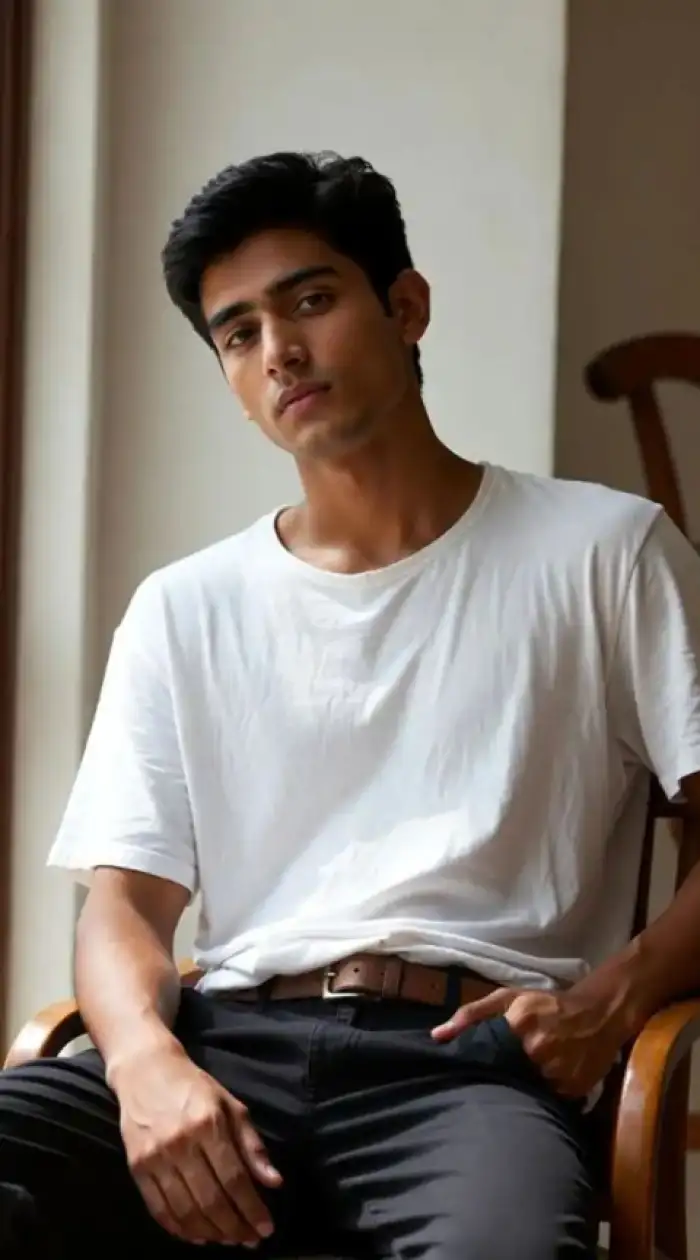
Use a sharp side or front photo with the full car visible. The filter separates the Roadster body from the background and keeps the wheels, roofline, and front fascia in place during motion. Avoid heavy shadows for cleaner edges. A plain background helps the app build clean camera movement.
BeforeRoadster Body Shape Retention
Use a sharp side or front photo with the full car visible. The filter separates the Roadster body from the background and keeps the wheels, roofline, and front fascia in place during motion. Avoid heavy shadows for cleaner edges. A plain background helps the app build clean camera movement.
 Before
Style Presets for Roadster
Choose from night city, desert highway, studio garage, and track day looks. Each preset changes light color, road texture, and camera angle. You do not write prompts or adjust sliders. Tap a preset and compare two versions before you save the final clip. This keeps choices quick.
BeforeStyle Presets for Roadster
Choose from night city, desert highway, studio garage, and track day looks. Each preset changes light color, road texture, and camera angle. You do not write prompts or adjust sliders. Tap a preset and compare two versions before you save the final clip. This keeps choices quick.
Why Use Vimi Tesla Roadster AI Video
Discover the practical benefits of this filter for car fans, sellers, and social creators who quickly need short Roadster clips.
Fast Car Scene Tests
A single photo can test a scene before a full shoot. Use the filter to compare colors, angles, and lighting for a Roadster concept. The clip gives your team a clear visual reference in under a minute. Share the result in a message and collect notes before the next render.
Fast Car Scene Tests
A single photo can test a scene before a full shoot. Use the filter to compare colors, angles, and lighting for a Roadster concept. The clip gives your team a clear visual reference in under a minute. Share the result in a message and collect notes before the next render.
How to Create Vimi Tesla Roadster AI Video in Minutes?
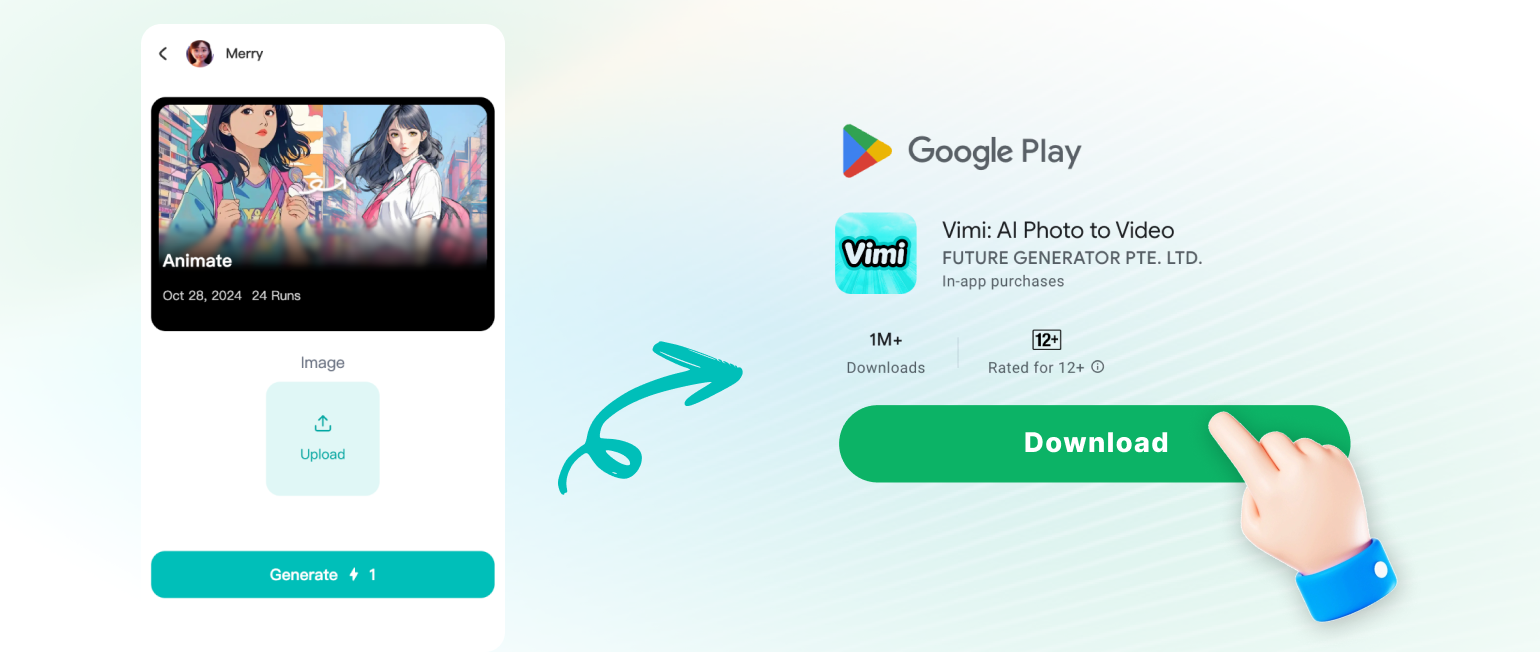
This guide shows how to make a Tesla Roadster AI Video with Vimi. Follow three short steps from filter choice to download and sharing.
YouTube Videos About Tesla Roadster AI Video Generator
Explore in-depth YouTube tutorials and demos that showcase the power and reliability of our AI Generator.
Here is What People Think About Us
Clear Car Shape
I tested the Tesla Roadster AI Video filter with a front photo from a garage shoot. The wheels and roofline stayed in place while the camera moved. I used the result as a quick reference for a client note.
Fast Scene Tests
I need short car clips for weekly posts. Vimi gave me a night city version from one photo in about 15 seconds. The template saved me from writing prompts and adjusting sliders.
Showroom Content Lead
We used the studio garage preset for a display screen loop. The Roadster body stayed clear at different camera angles. The Download button gave us a file we could send to the screen team.
Frequently Asked Questions
Find clear answers to common questions and get the guidance you need to make the most of our platform, faster and easier.
More Topics You May Like
Explore more topics you may like and discover fresh ideas tailored to your interests.
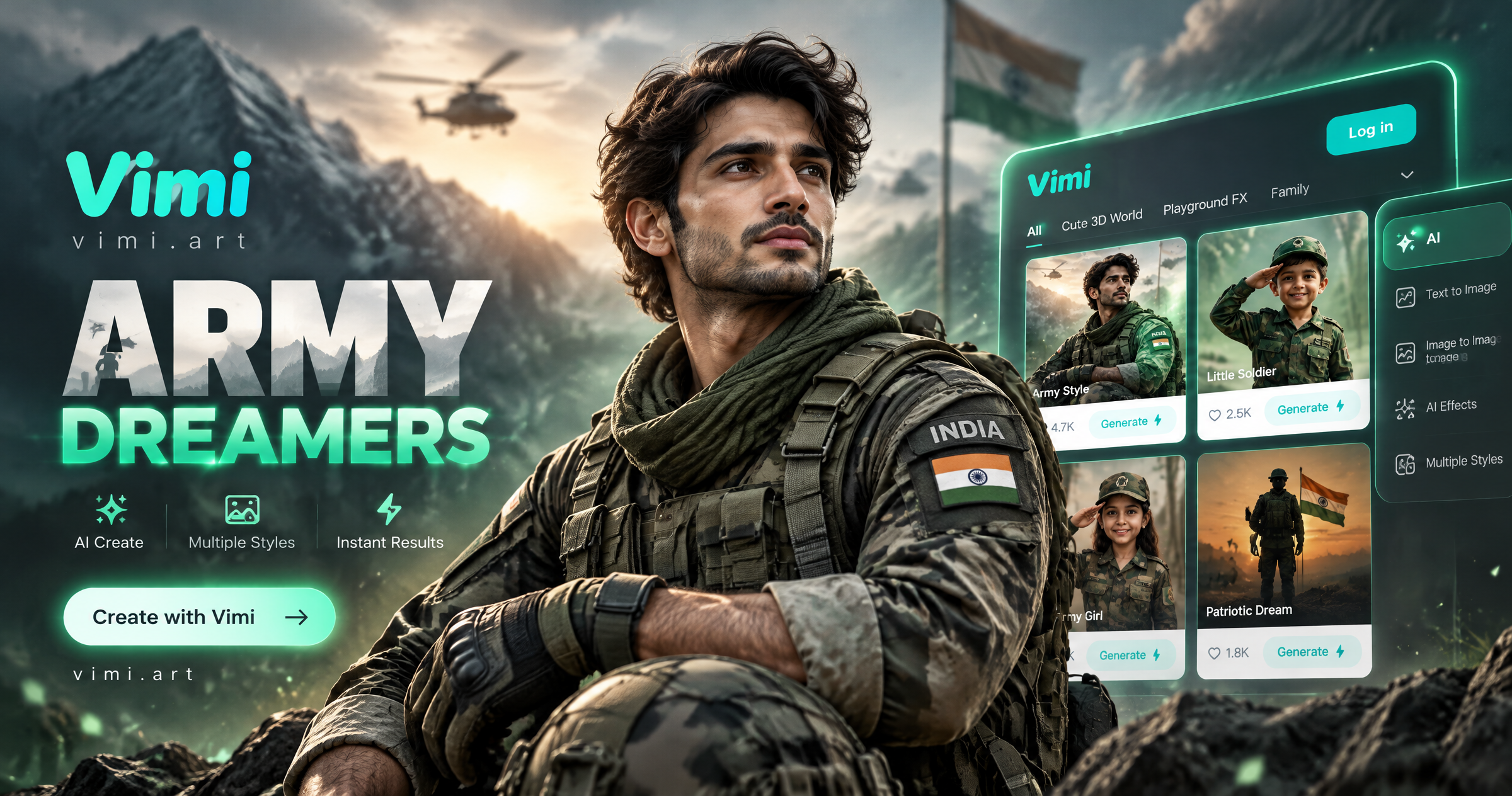
Vimi Army Dreamers AI Filter Create Dreamy Army Portraits on Mobile
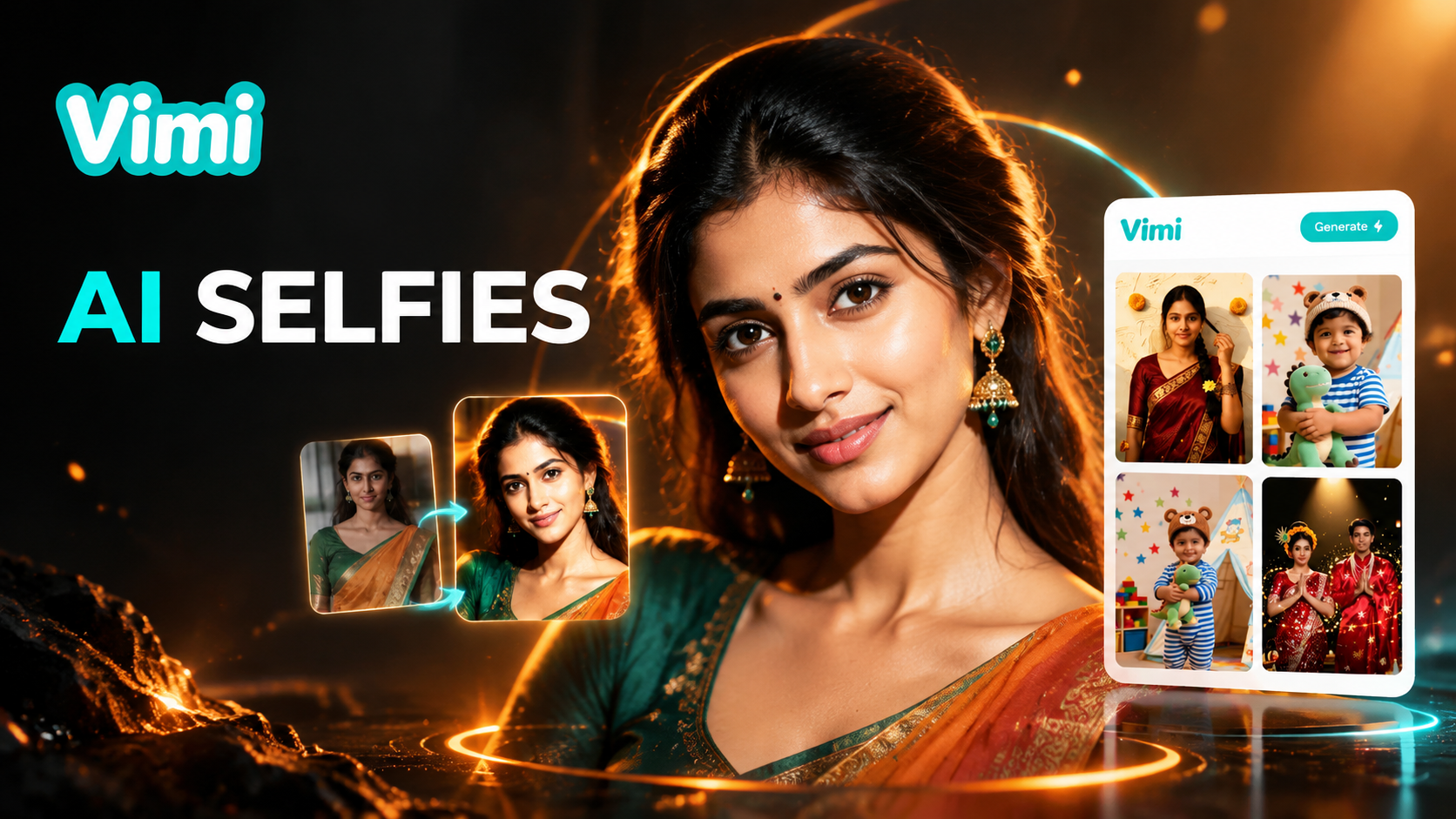
Best AI Selfie Generators: Create Selfies in Vimi
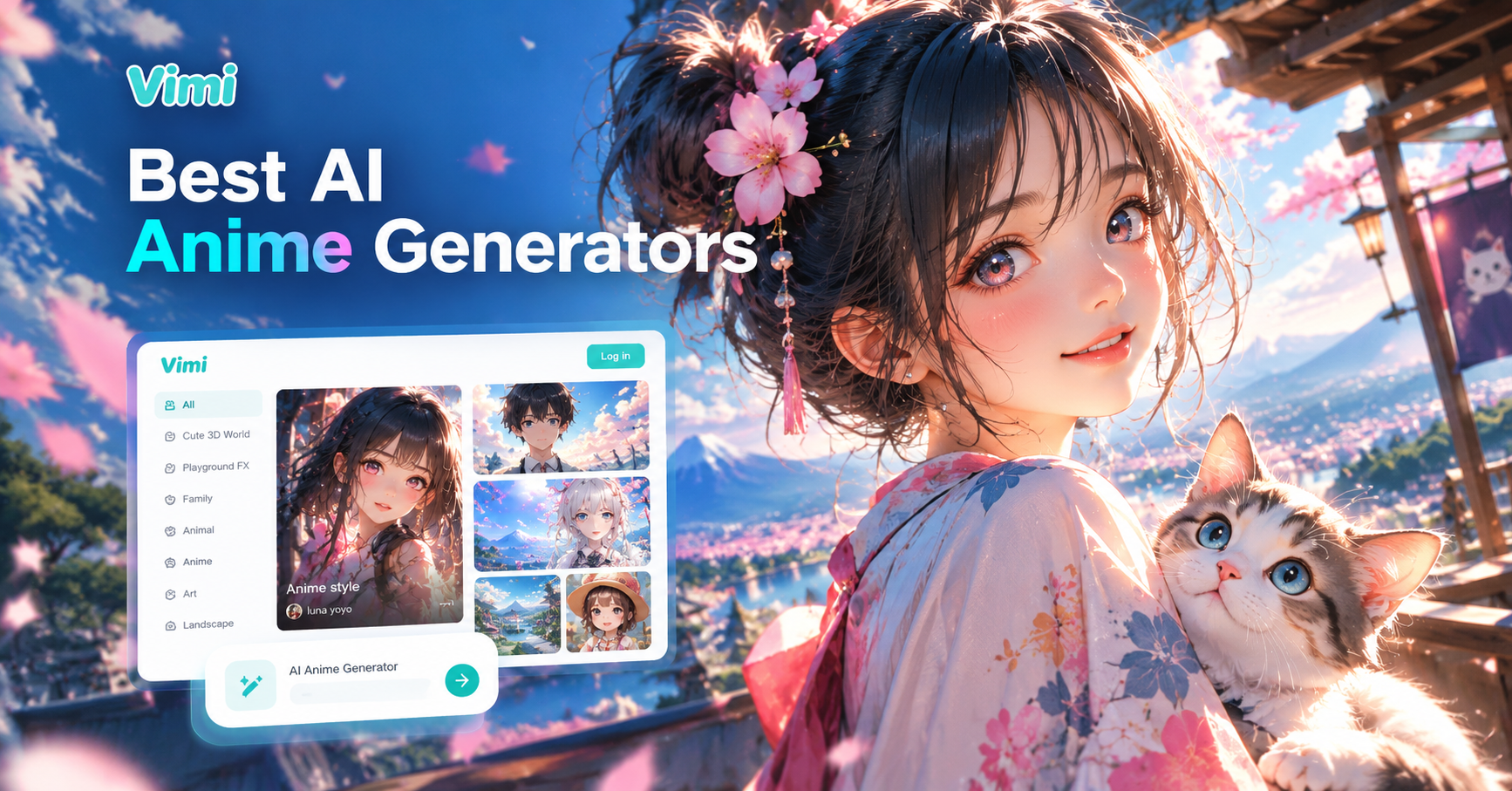
Best AI Anime Generators: Create Anime Art And Photo in Vimi
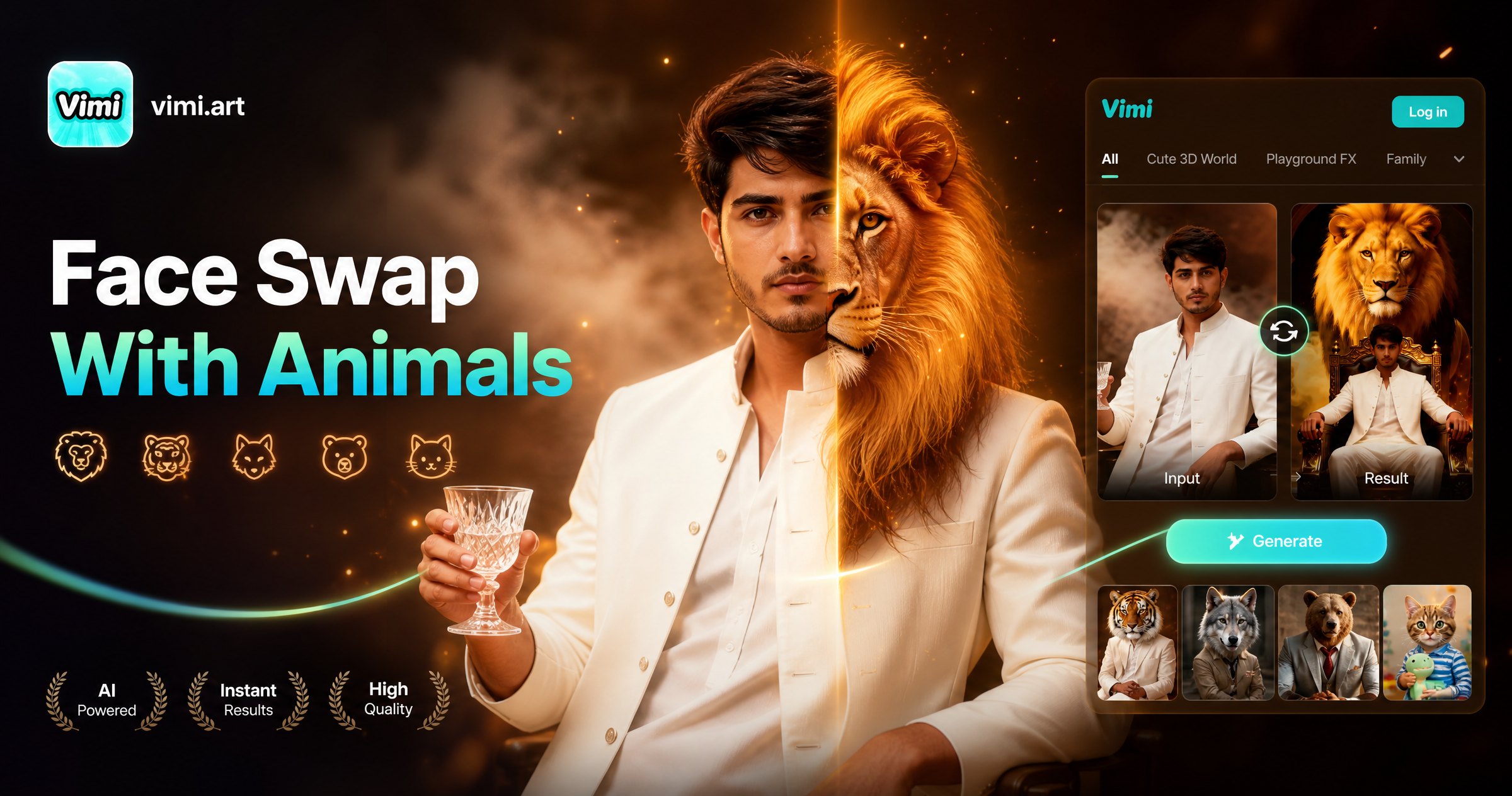
Face Swap With Animals: Create Fun Animal Face Photos With Vimi
Vimi Army Dreamers AI Filter Create Dreamy Army Portraits on Mobile
Best AI Selfie Generators: Create Selfies in Vimi
Best AI Anime Generators: Create Anime Art And Photo in Vimi
Face Swap With Animals: Create Fun Animal Face Photos With Vimi
Create Your Tesla Roadster AI Video
Download Vimi Today. Create Your Roadster Clip In A Few Minutes.

Create Your Tesla Roadster AI Video
Download Vimi Today. Create Your Roadster Clip In A Few Minutes.