Ecommerce Video
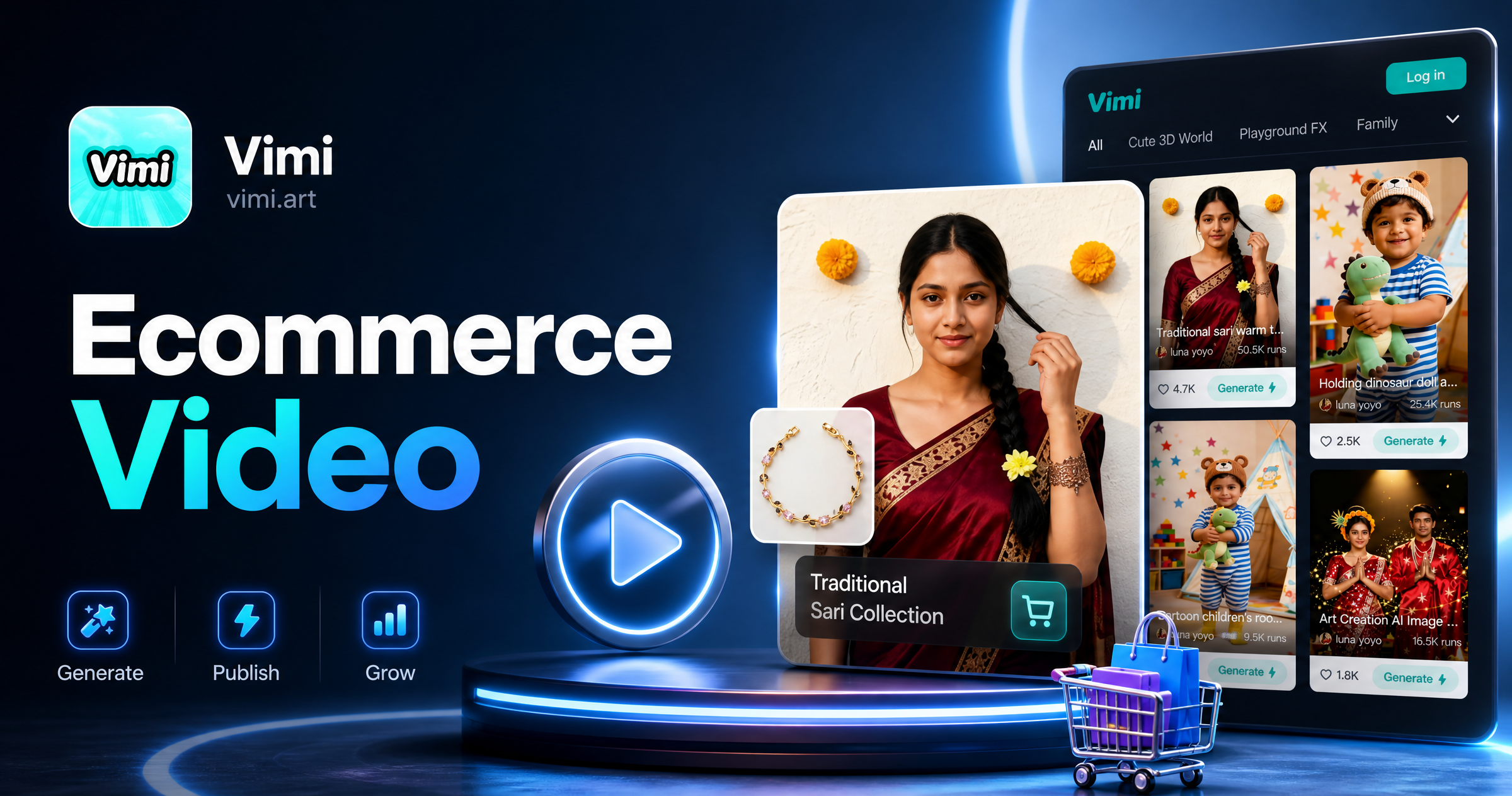
Choose the Ecommerce Video Filter
Discover the ecommerce video filter that perfectly matches what you want.
Vimi Ecommerce Video Filter Recommendations
Try Product Spin to show a bag from several angles. Use Model Smile to add short facial motion to a model photo. Pick Studio Portrait for clean product scenes. Choose Group Product Lineup for two or more items. Select Seasonal Promo for fast campaign clips. Each filter uses one upload and one Generate tap in the Vimi App.
Key Features of Vimi Ecommerce Video Filters
Explore the main Vimi Ecommerce Video features that help you turn simple product photos into short clips for social posts.
 Before
Image to Video Motion
Upload one product photo or model photo. Vimi keeps the main subject and adds motion. A still bag can turn, a model can blink or smile, and a flat lay can shift. You review the clip and generate another version if needed. This works inside the app.
BeforeImage to Video Motion
Upload one product photo or model photo. Vimi keeps the main subject and adds motion. A still bag can turn, a model can blink or smile, and a flat lay can shift. You review the clip and generate another version if needed. This works inside the app.
 Before
Large Style Template Library
Open the Vimi template library. You can choose from 21000+ styles. Options include realistic photography, anime, 3D clay, Ghibli inspired looks, cyberpunk, watercolor, and film tones. Each template is ready to use. Pick one, upload a photo, and tap Generate in the app. No prompt writing is needed.
BeforeLarge Style Template Library
Open the Vimi template library. You can choose from 21000+ styles. Options include realistic photography, anime, 3D clay, Ghibli inspired looks, cyberpunk, watercolor, and film tones. Each template is ready to use. Pick one, upload a photo, and tap Generate in the app. No prompt writing is needed.
 Before
Character Consistency and Control
Use the same model photo across several Ecommerce Video clips. Vimi keeps the face, hair, and clothing consistent. You can set small expressions like a smile, a blink, or an open mouth. You can also choose basic poses like standing or sitting. This supports series content.
BeforeCharacter Consistency and Control
Use the same model photo across several Ecommerce Video clips. Vimi keeps the face, hair, and clothing consistent. You can set small expressions like a smile, a blink, or an open mouth. You can also choose basic poses like standing or sitting. This supports series content.
Why Use Vimi for Ecommerce Video Filters
Discover the everyday benefits that make Vimi Ecommerce Video filters useful for small online shops, solo sellers, and social teams.
Fast Clips Without Crews
Vimi lets a seller make a clip without a camera team. Upload a product photo, choose an Ecommerce Video filter, and tap Generate. Most results appear in 10 to 20 seconds. You can test several angles and keep the version that fits your post. This all happens in the app.
Fast Clips Without Crews
Vimi lets a seller make a clip without a camera team. Upload a product photo, choose an Ecommerce Video filter, and tap Generate. Most results appear in 10 to 20 seconds. You can test several angles and keep the version that fits your post. This all happens in the app.
Explore Use Cases for Vimi Ecommerce Video
Find the Vimi Ecommerce Video use cases that fit social product launches, daily online store updates, and small team campaigns.
 Before
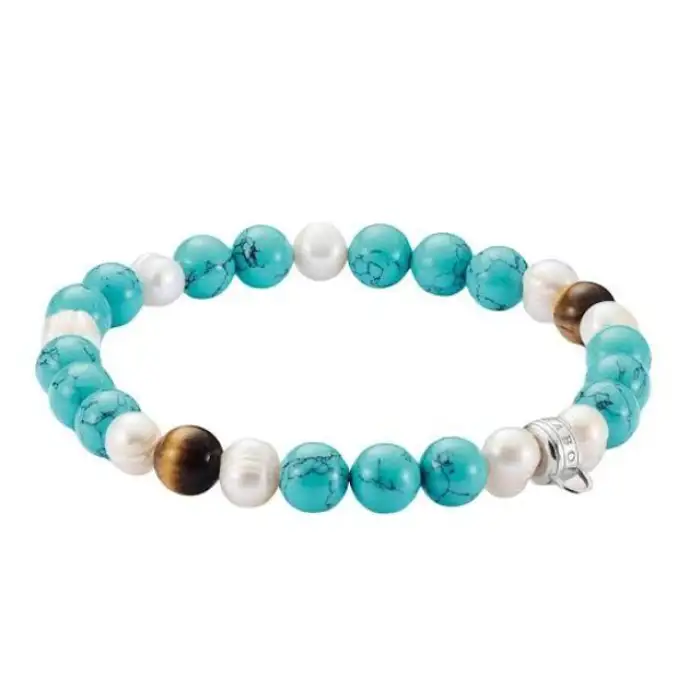
Short Product Demo Clips
Show how a product works with a short clip. Upload a clear product photo. Choose a Product Demo template. Vimi can rotate the item, add a small motion, or place it in a new scene. Use the clip on a product page, a social post, or story ad. The flow runs in the Vimi App.
 Before
Model Motion Ad Clips
Turn a model photo into a short ad. Upload the model image. Pick a Model Motion template. Vimi adds a smile, a blink, or a small head turn while it keeps the face and outfit stable. Add a product shot if the template supports two images. Generate the clip in the app.
 Before
Product Close Up Showcase
Use a close product shot to highlight texture, material, and small details. Upload a clear product photo and pick a Close Up template. Vimi can add a slow push in, a soft light shift, or a slight rotation while the item stays sharp. Generate the clip in the Vimi App.
How to Make Vimi Ecommerce Video Clips?
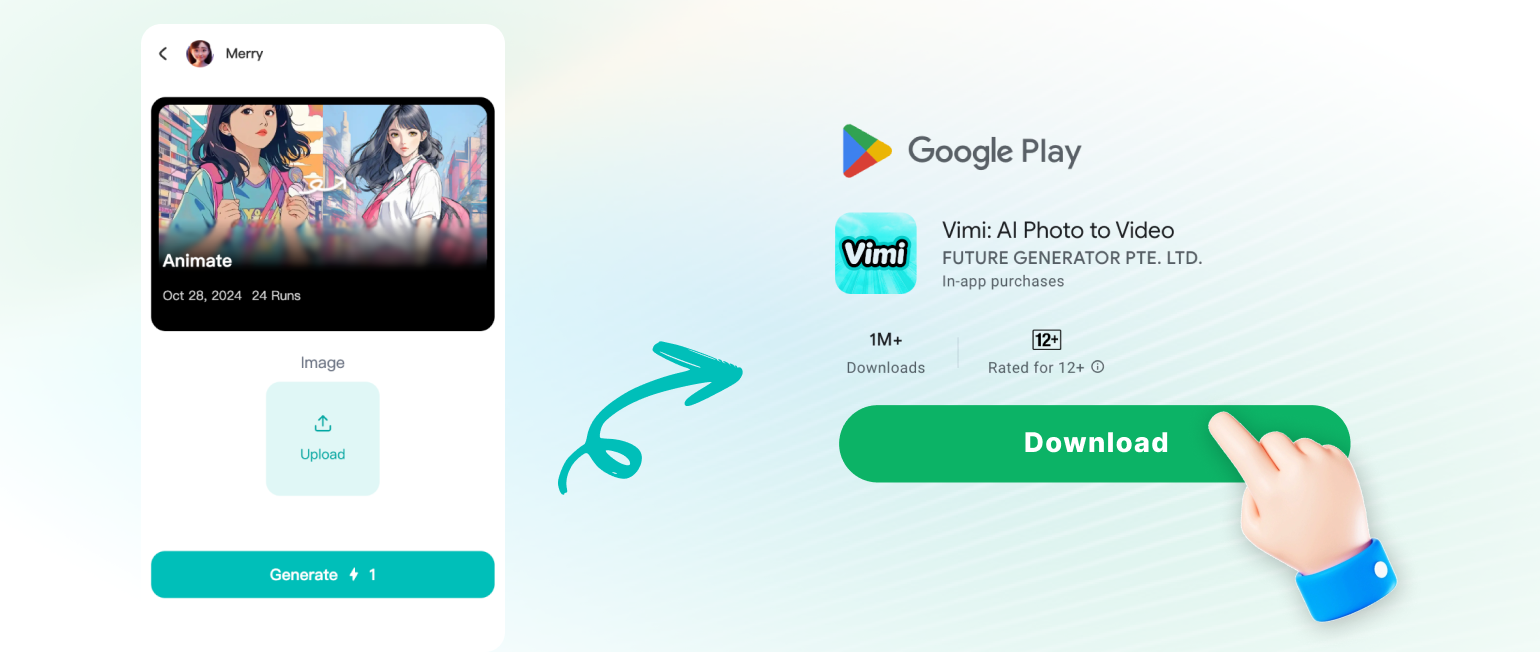
Follow three steps in the Vimi App. Start with a template, generate your clip, then save and share it.
YouTube Videos About Ecommerce Video Generator
Explore in-depth YouTube tutorials and demos that showcase the power and reliability of our AI Generator.
Frequently Asked Questions
Find clear answers to common questions and get the guidance you need to make the most of our platform, faster and easier.
More Topics You May Like
Explore more topics you may like and discover fresh ideas tailored to your interests.

AI Selfie with Celebrity: A Vimi App Guide
AI Egon Schiele Art Filter on Vimi: Create Expressionist Portraits in the App
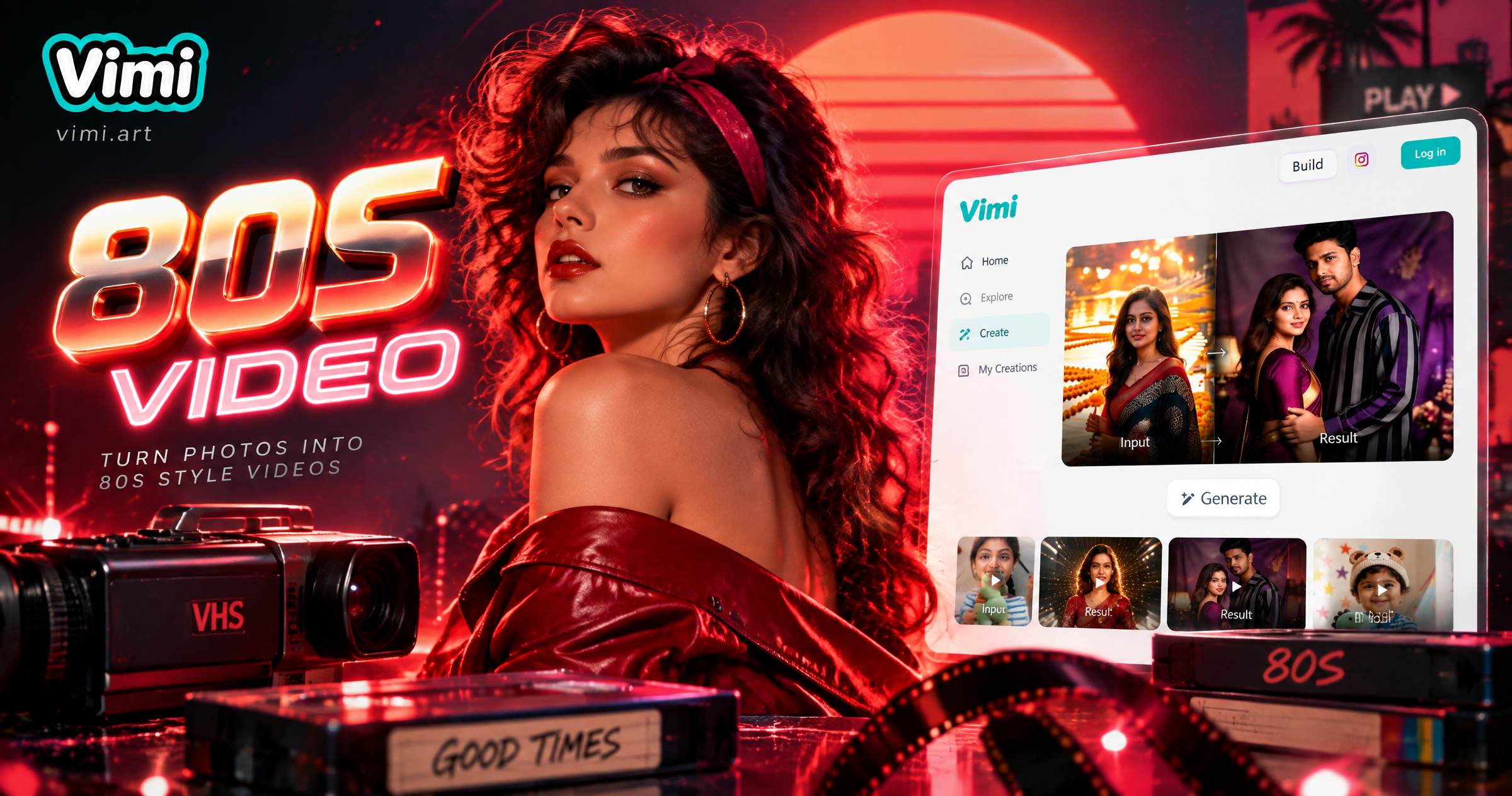
Vimi 80S Video Filter for Retro AI Clips

Best AI Anime Generators: Create Anime Art And Photo in Vimi
AI Selfie with Celebrity: A Vimi App Guide
AI Egon Schiele Art Filter on Vimi: Create Expressionist Portraits in the App
Vimi 80S Video Filter for Retro AI Clips
Best AI Anime Generators: Create Anime Art And Photo in Vimi
Create Ecommerce Video Clips With Vimi
Download the Vimi App and pick a filter. Generate your clip and share it today.
Create Ecommerce Video Clips With Vimi
Download the Vimi App and pick a filter. Generate your clip and share it today.