Comparison Infographic

Choose the Comparison Infographic Filter
Discover the comparison infographic filter that perfectly matches what you want.
Vimi Comparison Infographic Filter Recommendations
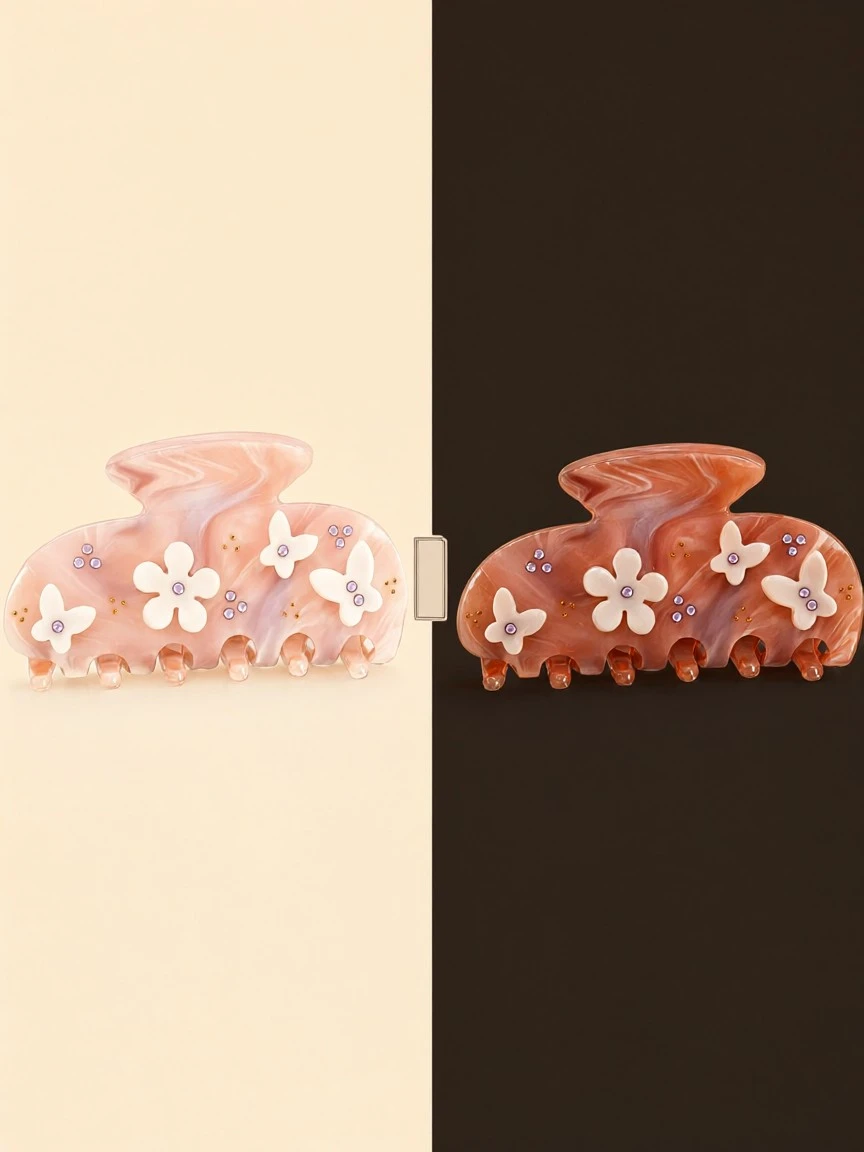
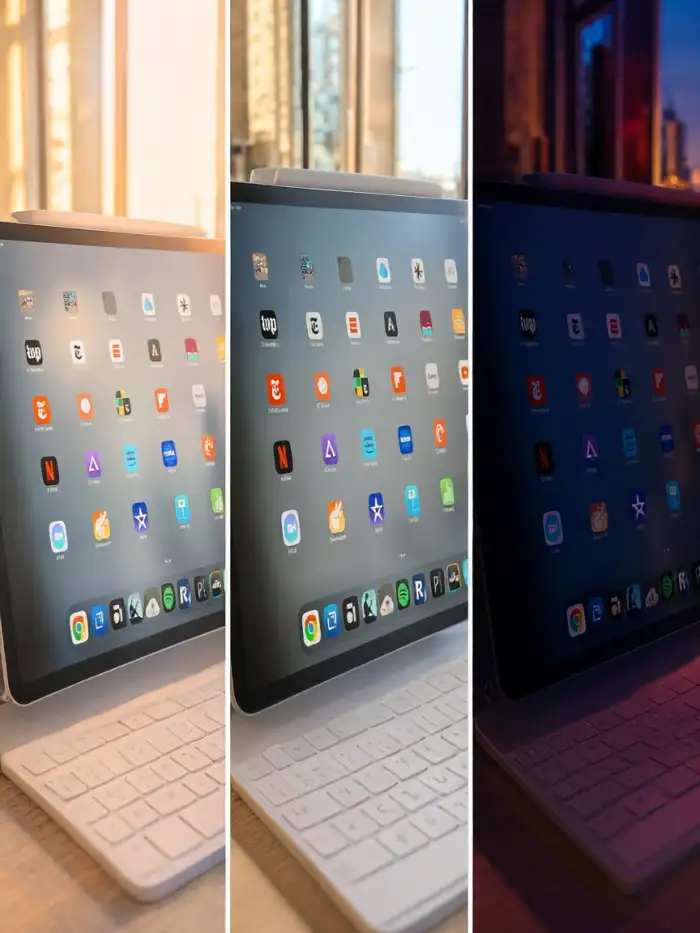
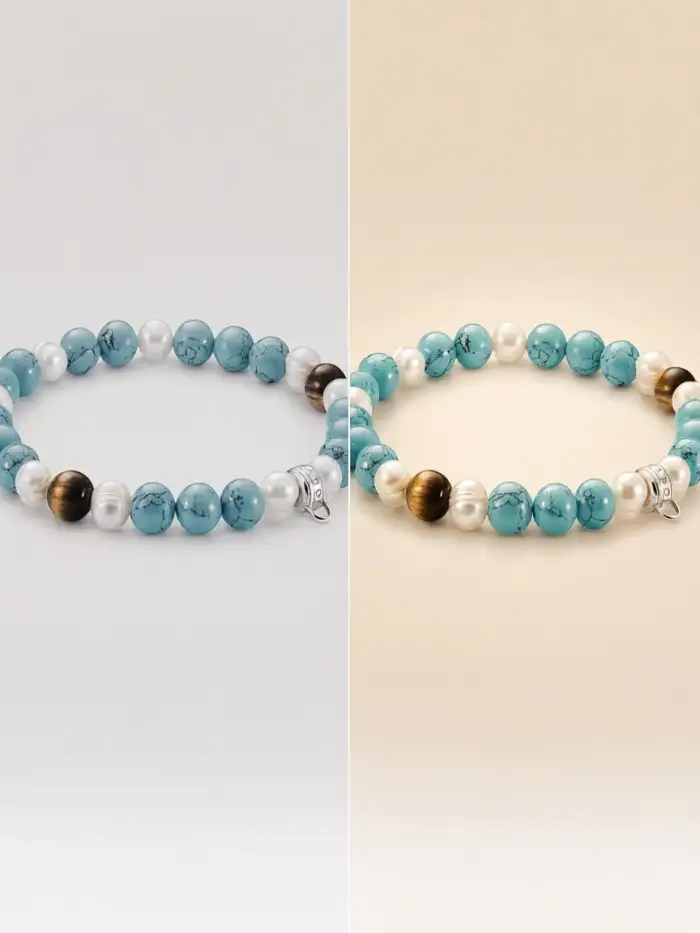
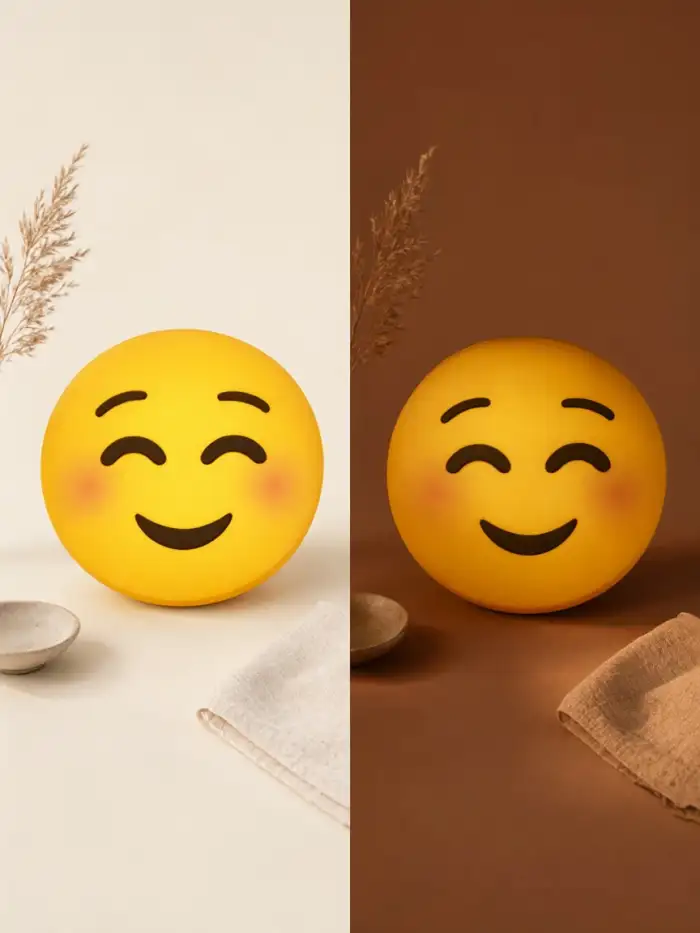
These filters focus on clear comparison layouts. They work for before and after photos, character matchups, group shots, and short motion clips. Each filter uses a ready template. You upload images and the app builds the layout for you.
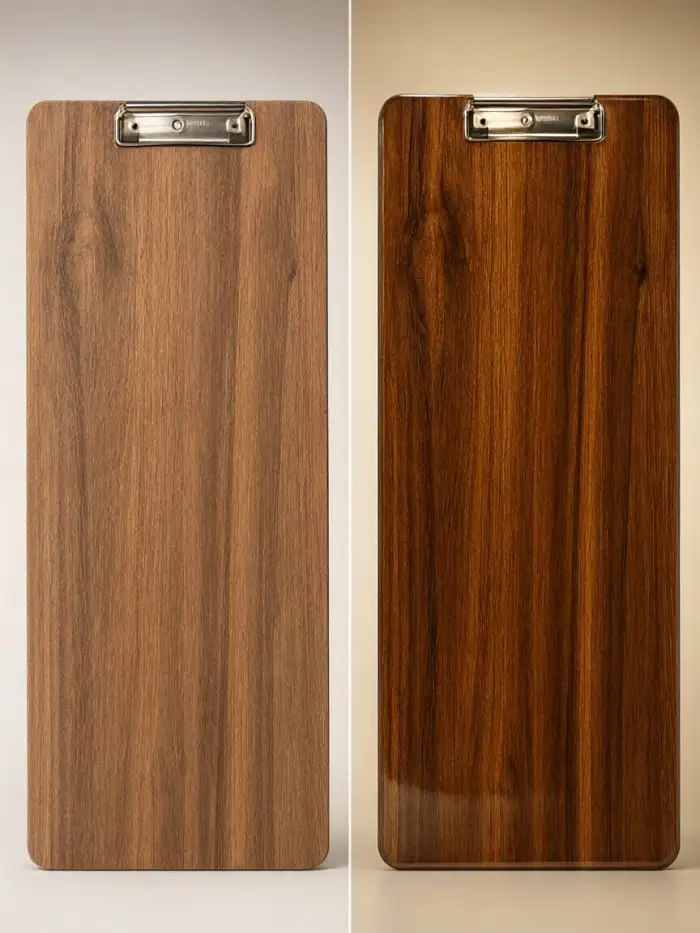
Key Features of Vimi Comparison Infographic Filters
Discover the main features that help you turn ordinary photos into clear comparison visuals with a few taps inside the Vimi app.
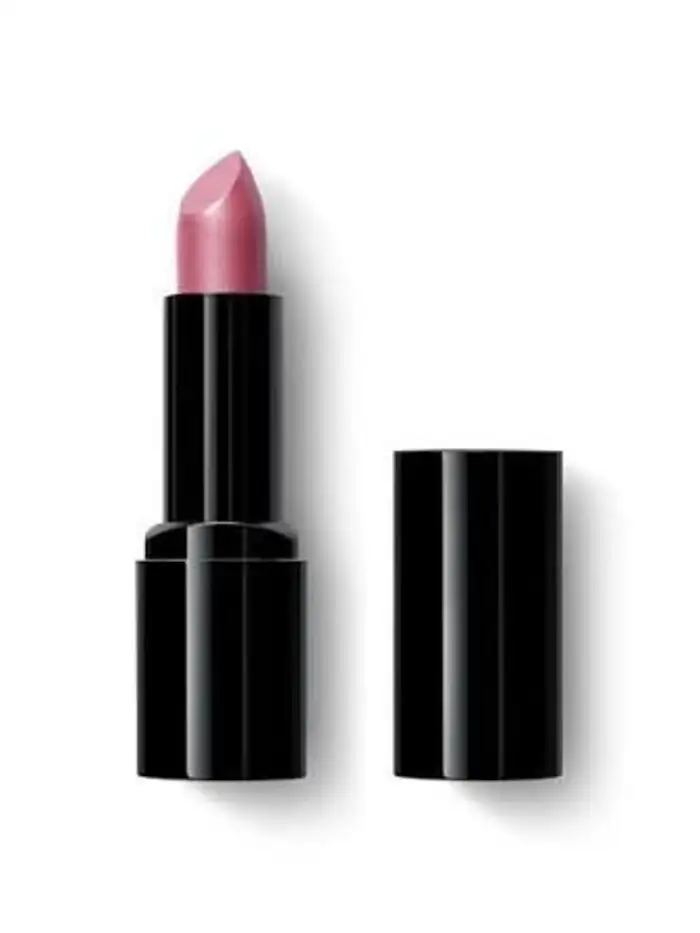 Before
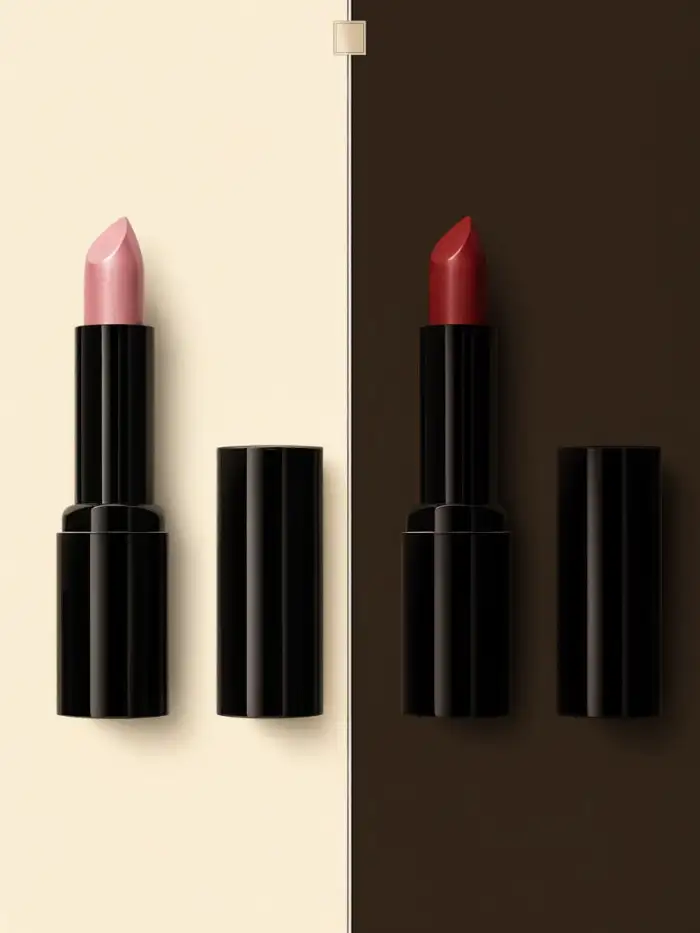 After
Clear Layout Output Controls
Choose a layout before you generate. Set the image style and the number of people in the scene. The app shows simple options and skips long settings. You get a clear result that fits your chosen comparison format. You can adjust the template again in seconds.
BeforeAfterClear Layout Output Controls
Choose a layout before you generate. Set the image style and the number of people in the scene. The app shows simple options and skips long settings. You get a clear result that fits your chosen comparison format. You can adjust the template again in seconds.
 Before
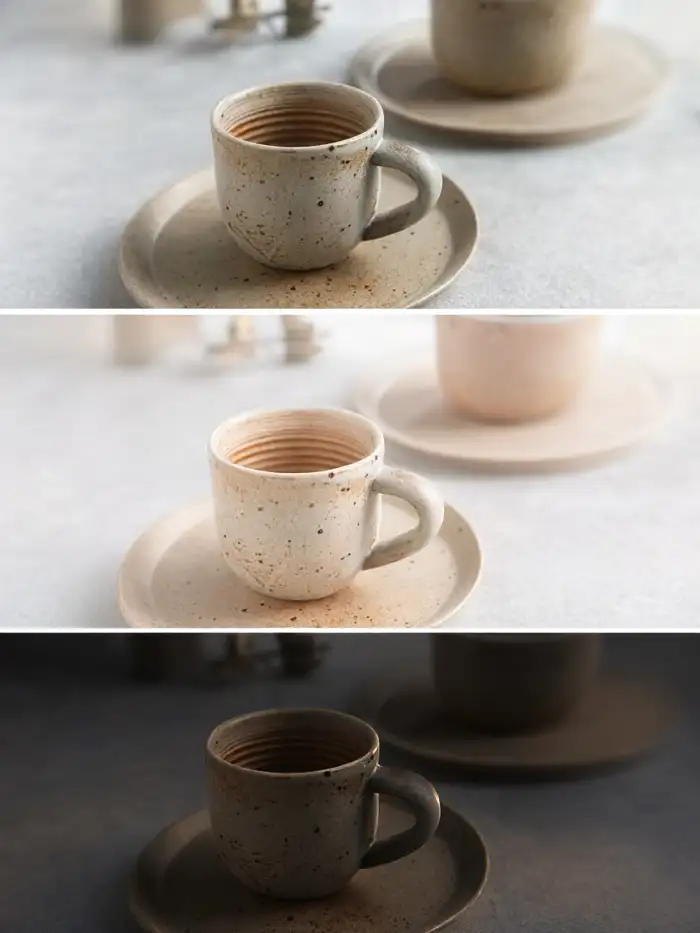 After
Fast Image And Video
Turn a still photo into a short video clip. Use motion templates for a smile, a blink, or a head turn. The app processes simple actions in about 10 to 20 seconds. You can also generate a still comparison image first. Then animate it with one tap.
BeforeAfterFast Image And Video
Turn a still photo into a short video clip. Use motion templates for a smile, a blink, or a head turn. The app processes simple actions in about 10 to 20 seconds. You can also generate a still comparison image first. Then animate it with one tap.
 Before
 After
Daily Trend Filter Templates
New templates arrive each day. They follow current social media trends and popular visual styles. Open the template library and pick a look that matches your post. Each template keeps the steps short and the result ready to share. You can publish it from the app.
BeforeAfterDaily Trend Filter Templates
New templates arrive each day. They follow current social media trends and popular visual styles. Open the template library and pick a look that matches your post. Each template keeps the steps short and the result ready to share. You can publish it from the app.
Why Use Vimi Comparison Infographic Filters Daily
Explore the practical gains you get when you use these filters for side by side photos, group shots, and short clips.
Clear Side By Side Results
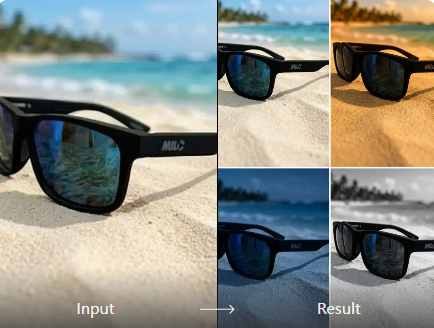
These filters help you show a change, a match, or a group setup in one view. You upload photos and the app places subjects in a clean order. Faces stay separate. The final image is easy to read on a phone screen. You can share it at once.
Clear Side By Side Results
These filters help you show a change, a match, or a group setup in one view. You upload photos and the app places subjects in a clean order. Faces stay separate. The final image is easy to read on a phone screen. You can share it at once.
How to Use Vimi Comparison Infographic Filters?
Follow three short steps inside the Vimi app. Pick a filter, upload photos, and save the result.

Step 01.
Get Vimi from the official download link and open the app on your phone.
Step 02.
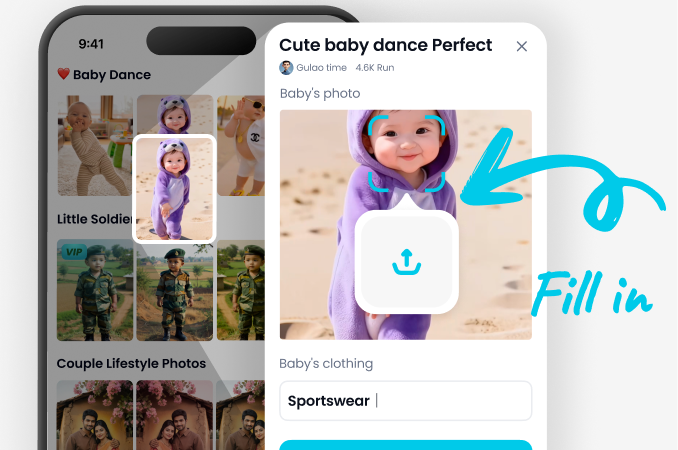
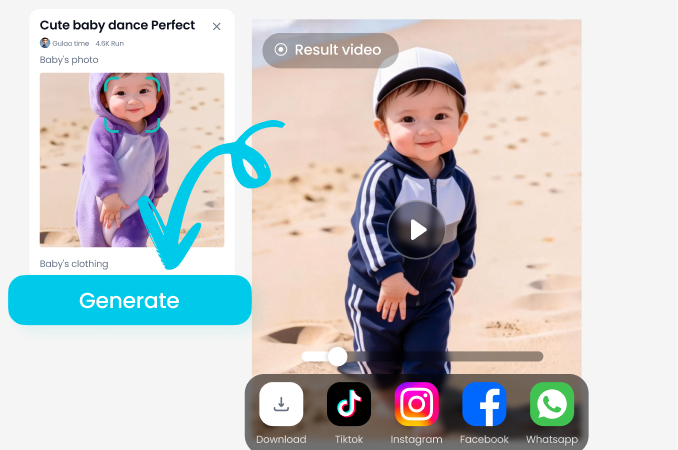
Browse the template library, select a Vimi Comparison Infographic filter, upload your photos, and tap Generate.
Step 03.
Wait for the result, tap Download to keep it, then share it to your social platforms.
Who Uses Comparison Infographic Enhancement Online

Mia Chen
I used the comparison filter for a before and after hair color post. The app kept my face clear and placed both photos in one clean layout. I saved the image and shared it in a few minutes.

Leo Park
Our team photo needed a matching style. I uploaded six portraits and picked a comparison template. Vimi kept each face separate and gave us a set we could post on the same day.

Sara Ali
I make short clips for my pet page. The motion template made my cat blink and turn its head. The clip was ready in under 20 seconds.

Noah Kim
I tried a 3D clay comparison template with two family photos. The layout was easy to read on a phone. I published it to my profile and my friends asked which filter I used.
Mia Chen
I used the comparison filter for a before and after hair color post. The app kept my face clear and placed both photos in one clean layout. I saved the image and shared it in a few minutes.
Leo Park
Our team photo needed a matching style. I uploaded six portraits and picked a comparison template. Vimi kept each face separate and gave us a set we could post on the same day.
Sara Ali
I make short clips for my pet page. The motion template made my cat blink and turn its head. The clip was ready in under 20 seconds.
Noah Kim
I tried a 3D clay comparison template with two family photos. The layout was easy to read on a phone. I published it to my profile and my friends asked which filter I used.
Mia Chen
I used the comparison filter for a before and after hair color post. The app kept my face clear and placed both photos in one clean layout. I saved the image and shared it in a few minutes.
Leo Park
Our team photo needed a matching style. I uploaded six portraits and picked a comparison template. Vimi kept each face separate and gave us a set we could post on the same day.
Sara Ali
I make short clips for my pet page. The motion template made my cat blink and turn its head. The clip was ready in under 20 seconds.
Noah Kim
I tried a 3D clay comparison template with two family photos. The layout was easy to read on a phone. I published it to my profile and my friends asked which filter I used.
Frequently Asked Questions
Find clear answers to common questions and get the guidance you need to make the most of our platform, faster and easier.
More Topics You May Like
Explore more topics you may like and discover fresh ideas tailored to your interests.

AI Selfie with Celebrity: A Vimi App Guide
AI Egon Schiele Art Filter on Vimi: Create Expressionist Portraits in the App
Vimi 80S Video Filter for Retro AI Clips

Best AI Anime Generators: Create Anime Art And Photo in Vimi
AI Selfie with Celebrity: A Vimi App Guide
AI Egon Schiele Art Filter on Vimi: Create Expressionist Portraits in the App
Vimi 80S Video Filter for Retro AI Clips
Best AI Anime Generators: Create Anime Art And Photo in Vimi
Create Comparison Visuals In Vimi Today
Download the app and pick a filter. Upload photos and generate your result.

Create Comparison Visuals In Vimi Today
Download the app and pick a filter. Upload photos and generate your result.