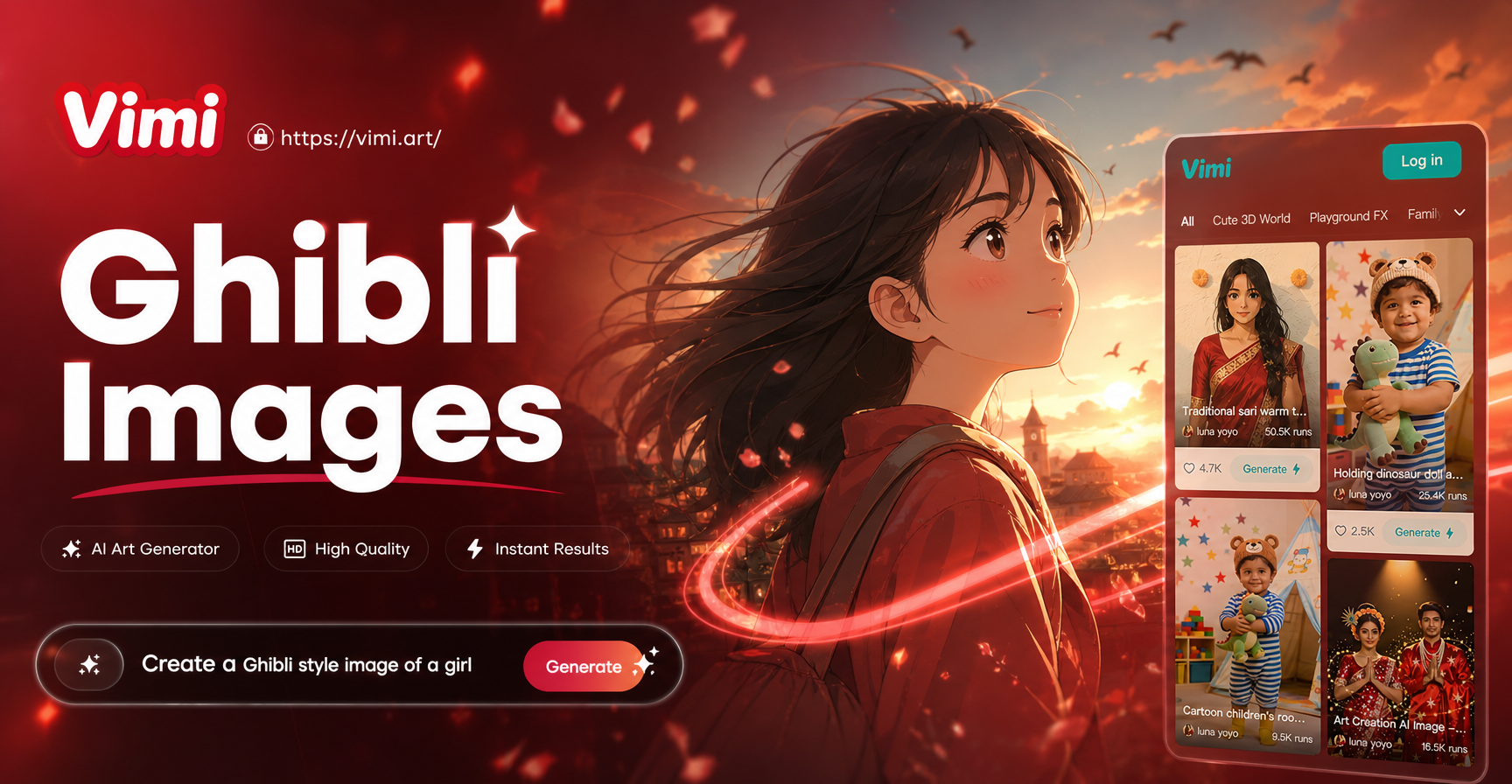
Creating Ghibli style images is now within reach for anyone with a smartphone. Studio Ghibli's hand drawn anime aesthetic, with its soft watercolor textures, warm pastel colors, and magical natural settings, has inspired millions. In the past, recreating this look required years of painting practice. Today, AI image tools like vimi let you generate or transform photos into beautiful Ghibli style artwork in seconds. This guide walks you through the exact steps, practical tips, and prompt examples to achieve that dreamy, nostalgic look. No drawing skills or complex software needed.
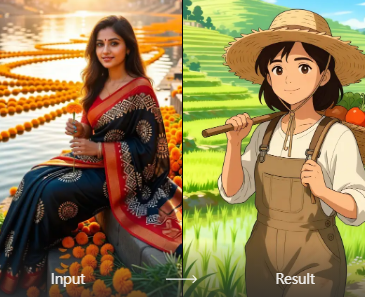
What Makes Ghibli Style Images Unique?
Before you start generating, it helps to understand the visual language of Studio Ghibli films. Whether you think of My Neighbor Totoro, Spirited Away, or Howl's Moving Castle, several key elements define the look.
- Soft watercolor textures. Backgrounds often look hand painted with gentle color blending and visible brush strokes.
- Pastel color palettes. Muted greens, warm yellows, soft blues, and faded pinks create a calm, nostalgic mood.
- Lush natural environments. Overgrown gardens, dense forests, rolling hills, and dramatic skies are common.
- Rounded, expressive characters. Faces are simple but emotionally rich, with large eyes and soft outlines.
- Attention to small details. A kettle on a stove, a dusty bookshelf, a single falling leaf. These small touches make scenes feel lived in.
- Dreamy lighting. Sunlight often filters through leaves or windows, creating soft glows and long shadows.
When you create Ghibli style images, aim for these qualities. The more you understand the aesthetic, the better your prompts and photo choices will be.
How to Create Ghibli Style Images with vimi
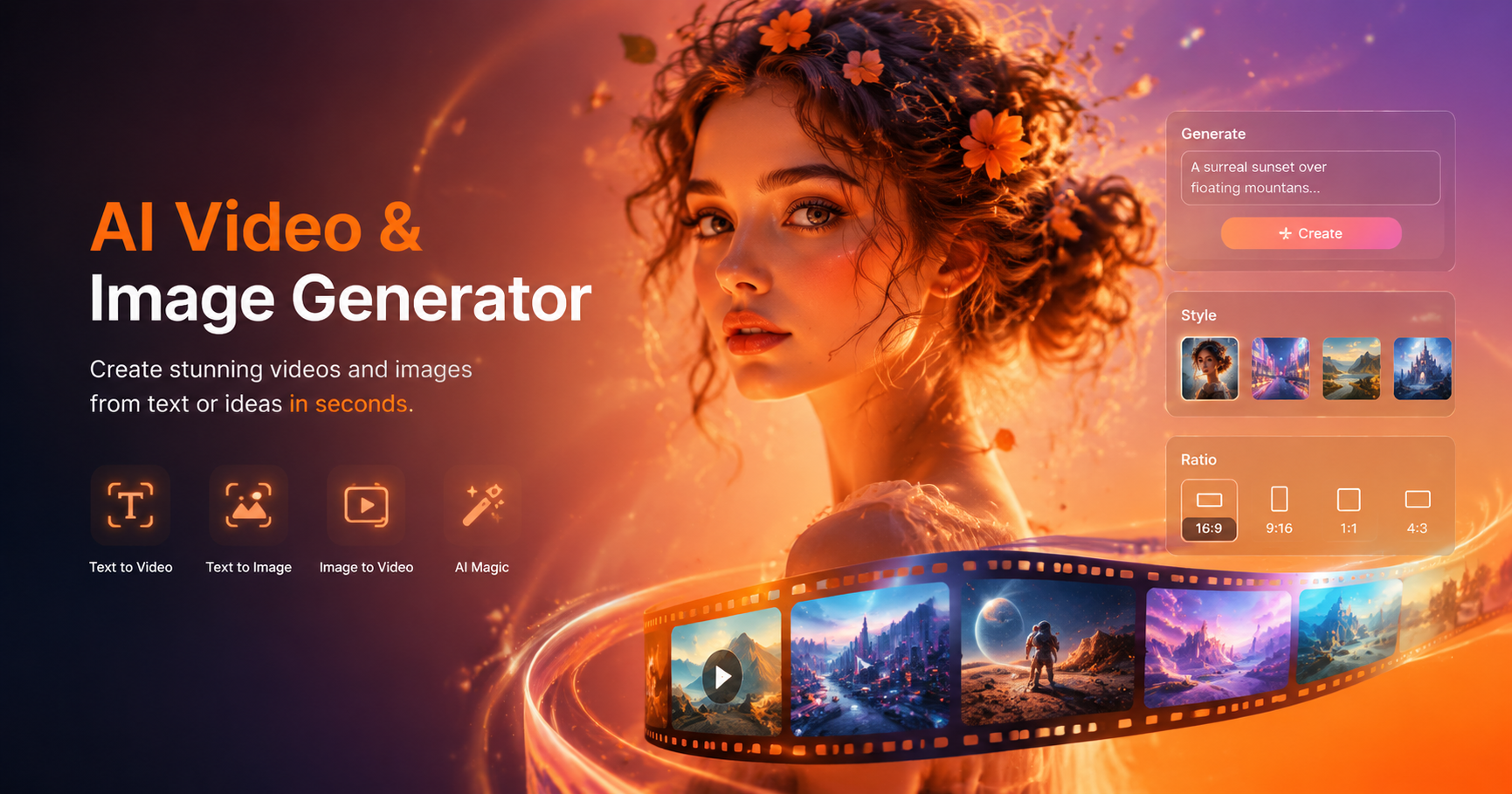
vimi is an all in one AI design app available on Google Play. It combines text to image, image to image, and image to video features with over a million style filters. You can use it to generate original Ghibli style scenes from text prompts or transform your own photos into anime art. Follow these steps.
Step 1: Download the vimi App
Open Google Play on your Android phone and search for vimi. Install the app and create a free account. vimi works entirely on mobile, so you can create anywhere. The interface is simple and designed for beginners. No complex prompt engineering needed, but a few well chosen words will improve your results.
Step 2: Choose a Ghibli Style Filter
After opening vimi, tap the image generation feature. You will see a large library of style filters. Type Ghibli or anime in the search bar. You will find filters named Ghibli, Anime Watercolor, Soft Anime, and similar. Each filter applies a different level of softness and color saturation. Tap a filter to preview how it changes the style. For an authentic Ghibli look, choose a filter that emphasizes watercolor texture and pastel tones. Avoid filters that look too sharp or overly digital.
Step 3: Upload a Photo or Write a Prompt
vimi gives you two main ways to create Ghibli style images.
- Image to image. Upload a photo from your gallery. The AI keeps the main subject and composition but applies the chosen Ghibli style. This works great for turning a landscape photo or a portrait into anime art. For best results, use a photo with natural lighting and a clear subject.
- Text to image. Write a description of the scene you want. Include details about setting, characters, mood, and color. For example, a cozy cottage in a green valley, soft watercolor, pastel colors. The AI will generate an original image based on your words.
You can also combine both methods. Upload a reference photo and add a text prompt to adjust small details, like adding flowers or changing the sky.
Step 4: Generate and Refine
Tap the generate button and wait a few seconds. vimi produces high resolution images quickly. If the first result is not perfect, do not worry. Small changes can make a big difference.
- Adjust the prompt. Add more descriptive words like soft light, hand painted texture, or gentle shadows.
- Change the filter. Try a different Ghibli style filter to see which one matches your vision.
- Use a different photo. A photo with simpler background and softer light often produces better anime results.
- Regenerate. Sometimes the AI needs a second try to nail the details.
Once you are happy, save the image to your phone and share it on social media or use it as a wallpaper.
Tips for Authentic Ghibli Style Results
Even with a good filter, some images can look off. Here are practical tips to get closer to the real Ghibli aesthetic.
- Use soft natural lighting. Avoid harsh flash or direct midday sun. Early morning and golden hour light work best.
- Include nature elements. Trees, flowers, water, clouds, and small animals instantly add a Ghibli feel. If your scene is urban, add a few plants or a park.
- Keep scenes simple and cozy. A quiet kitchen, a small train station, or a windy hilltop are more Ghibli than a busy modern city.
- Emphasize pastel colors. In your prompt, mention pastel palette, faded colors, or soft hues. This prevents overly saturated results.
- Add small everyday details. A bicycle leaning against a wall, a cup of tea, laundry hanging on a line. These details ground the image in a real, warm world.
- Avoid modern sharp objects. Smartphones, plastic signs, and neon lights can break the nostalgic mood. If they appear, describe the scene without them.
- Use reference photos with soft light. A photo taken on a cloudy day often translates better into hand drawn anime than a high contrast image.
Remember, the goal is a warm, gentle, and slightly imperfect look. Do not chase photorealism. Let the AI embrace the hand drawn charm.
Ghibli Style Prompt Examples to Try
If you are using text to image, here are several prompts you can copy and adapt. Each one describes the scene, mood, and style in enough detail to generate a strong Ghibli style image.
- A cozy cottage nestled in a lush green valley, soft pastel watercolor style, hand drawn Studio Ghibli inspired background, warm sunlight, small flowers, gentle clouds.
- A young girl with a red umbrella standing on a hill overlooking a vast ocean, Ghibli style animation, soft colors, detailed clouds, wind in her hair.
- A magical forest spirit with glowing eyes sitting on a mossy rock, fireflies around, Ghibli style, dreamy atmosphere, muted greens and blues.
- A busy street in a small Japanese town, cherry blossom petals falling, Ghibli style, soft sunlight, nostalgic mood, hand painted texture.
- A cat sitting on a windowsill watching the rain, Ghibli style, cozy interior, warm lamp light, detailed watercolor texture, pastel colors.
- An old train crossing a bridge over a river at sunset, Ghibli style background, soft gradients, birds flying in the distance, calm and peaceful scene.
You can change any detail to match your own idea. The key is to specify the subject, environment, lighting, and style. Avoid writing very short prompts like just a house. More description gives the AI more to work with.
Common Mistakes and How to Fix Them
Many beginners run into similar issues when creating Ghibli style images. Here is how to solve them.
- Result looks too sharp or digital. Add words like soft focus, hand painted, watercolor texture, or pastel colors to your prompt. Choose a softer filter.
- Characters look distorted. Use image to image with a clear, front facing photo. If using text, mention simple character design, large expressive eyes, soft outlines.
- Background is empty or generic. Add specific environment details, like overgrown garden, small bridge, or rolling hills. The richer the description, the better the scene.
- Colors are too bright. Use terms like muted tones, faded colors, or gentle palette. Avoid words like neon, vibrant, or high saturation.
- Image includes modern objects. If a car or phone appears, add a negative prompt if available, or simply rewrite the description without those items. You can also use image to image with a photo of a classic rural scene.
Sometimes the simplest fix is to try a different filter or regenerate a few times. vimi makes it easy to experiment.
Frequently Asked Questions
Can I use vimi to turn my own photo into Ghibli style?
Yes. vimi's image to image feature lets you upload any photo and apply a Ghibli style filter. The AI preserves your subject and composition while giving it a hand drawn anime look. For best results, use a photo with soft lighting and a clear main subject.
Do I need to be good at drawing to create Ghibli style images?
No. vimi handles all the drawing and rendering for you. You only need to choose a filter, upload a photo or write a prompt, and tap generate. A basic understanding of what makes Ghibli style unique will help you get better results, but no artistic skill is required.
What kind of photos work best for Ghibli style transformation?
Photos with natural light, simple backgrounds, and organic elements like trees, water, or sky tend to work best. Avoid high contrast images with harsh shadows or busy modern environments. Landscapes, portraits with soft expressions, and cozy indoor scenes are all good choices.
Can I create Ghibli style videos as well?
Yes. vimi includes image to video and text to video features. You can animate a static Ghibli style image to add gentle movement, like wind blowing through leaves or a character blinking. This is great for short social media clips.
Start Creating Your Own Ghibli Style Images
Now you know the exact steps to create Ghibli style images with vimi. Start by downloading the app, pick a filter, and either upload a photo or write a descriptive prompt. Experiment with different prompts, settings, and reference photos until you achieve that dreamy, hand drawn look. The process is fast, free to try, and endlessly creative. Download vimi from Google Play and bring a little Ghibli magic into your photos today.