AI Timelapse Generator
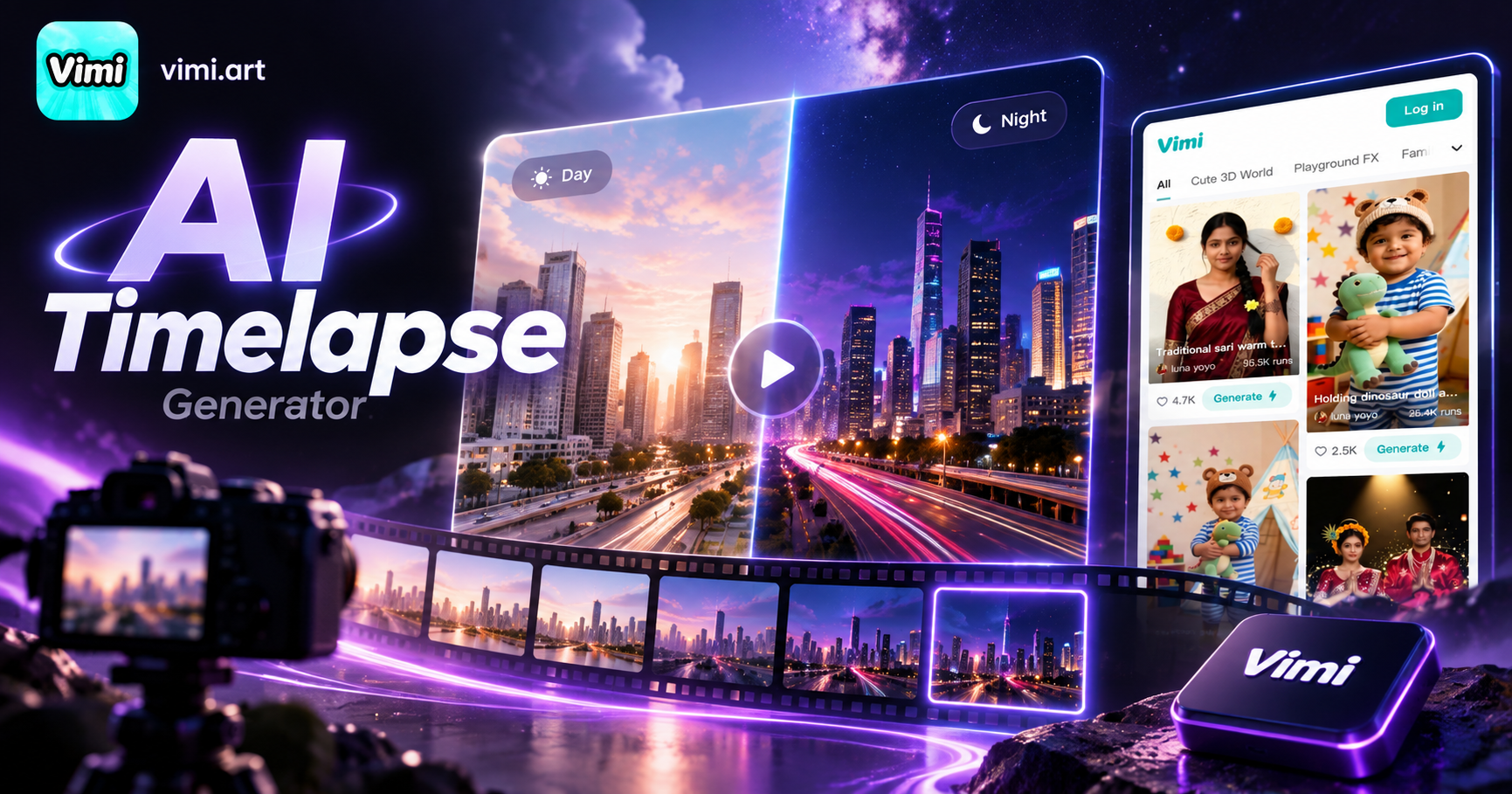
Choose the AI Timelapse Generator Filter
Discover the ai timelapse generator filter that perfectly matches your style.
Vimi AI Timelapse Generator Filter Picks Templates
Start with a style that matches your scene. Vimi offers time lapse looks for city lights, nature, portraits, travel, and party moments.
Key Features of Vimi AI Timelapse Generator
Explore the main tools inside Vimi AI Timelapse Generator and see how each part helps you create motion from still images.
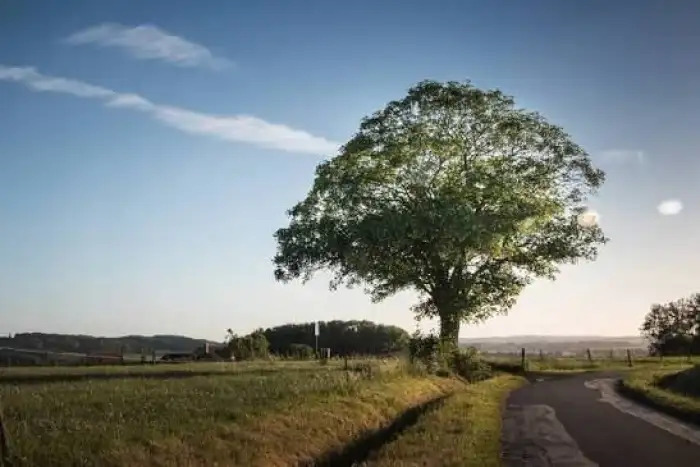 Before
Photo to Video Motion
Upload one clear photo and Vimi adds natural movement. The AI can create slow zooms, drifting clouds, flowing water, or shifting light. You do not need editing skills. Pick a template, tap Generate, and watch the still image become a short time lapse video quickly.
 Before
Style and Mood Control
Choose from 21000 ready to use templates. Vimi includes realistic film, anime, 3D clay, Ghibli inspired, cyberpunk, watercolor, and studio portrait looks. Each style changes color, pace, and light. Your time lapse can feel calm, bold, nostalgic, or playful with one quick tap every time.
 Before
Character Consistency in Motion
Keep the same face, hair, and clothing across every clip. Vimi helps you build a digital double or a series of matching avatars. You can control small expressions like smiles, blinks, and head turns. Your time lapse keeps a stable identity from start to finish.
Why Choose Vimi AI Timelapse Generator Today
Discover the benefits that make Vimi AI Timelapse Generator a useful tool for quick photo motion and social sharing every day.
Easy Creation for Everyone
You do not need editing software or prompt writing. Vimi turns a photo into a time lapse video with a template and one tap. The process takes seconds. This helps beginners, busy creators, and small teams post more often without learning complex tools at all.
Easy Creation for Everyone
You do not need editing software or prompt writing. Vimi turns a photo into a time lapse video with a template and one tap. The process takes seconds. This helps beginners, busy creators, and small teams post more often without learning complex tools at all.
How to Use Vimi AI Timelapse Generator?
Follow three simple steps to create a time lapse video in Vimi. The whole process takes less than one minute.

Step 01.
Get the Vimi app from the official page or app store. Open it and sign in. All tools and templates live in one place.
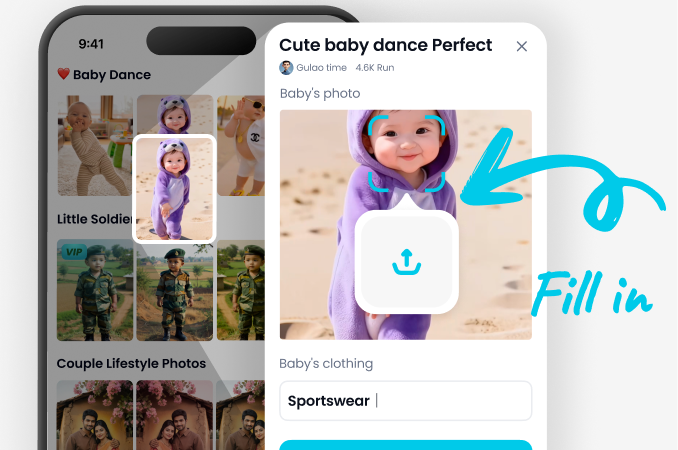
Step 02.
Browse the Vimi template library. Pick AI Timelapse Generator. Upload one or more photos. Tap Generate and wait 10 to 20 seconds.
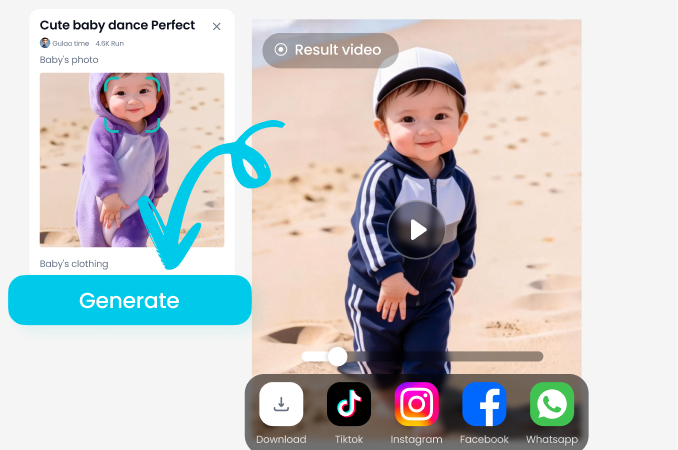
Step 03.
Watch your video. Tap Download to save it. You can also publish it to your Vimi profile or share it on social media.
YouTube Videos About AI Timelapse Generator
Explore in-depth YouTube tutorials and demos that showcase the power and reliability of our AI Generator.
Frequently Asked Questions
Find clear answers to common questions and get the guidance you need to make the most of our platform, faster and easier.
More Topics You May Like
Explore more topics you may like and discover fresh ideas tailored to your interests.

Vimi AI Group Dance Generator: Turn Group Photos Into Dance Videos

AI Viking Warrior Filter: Create Norse Warrior Portraits in Vimi
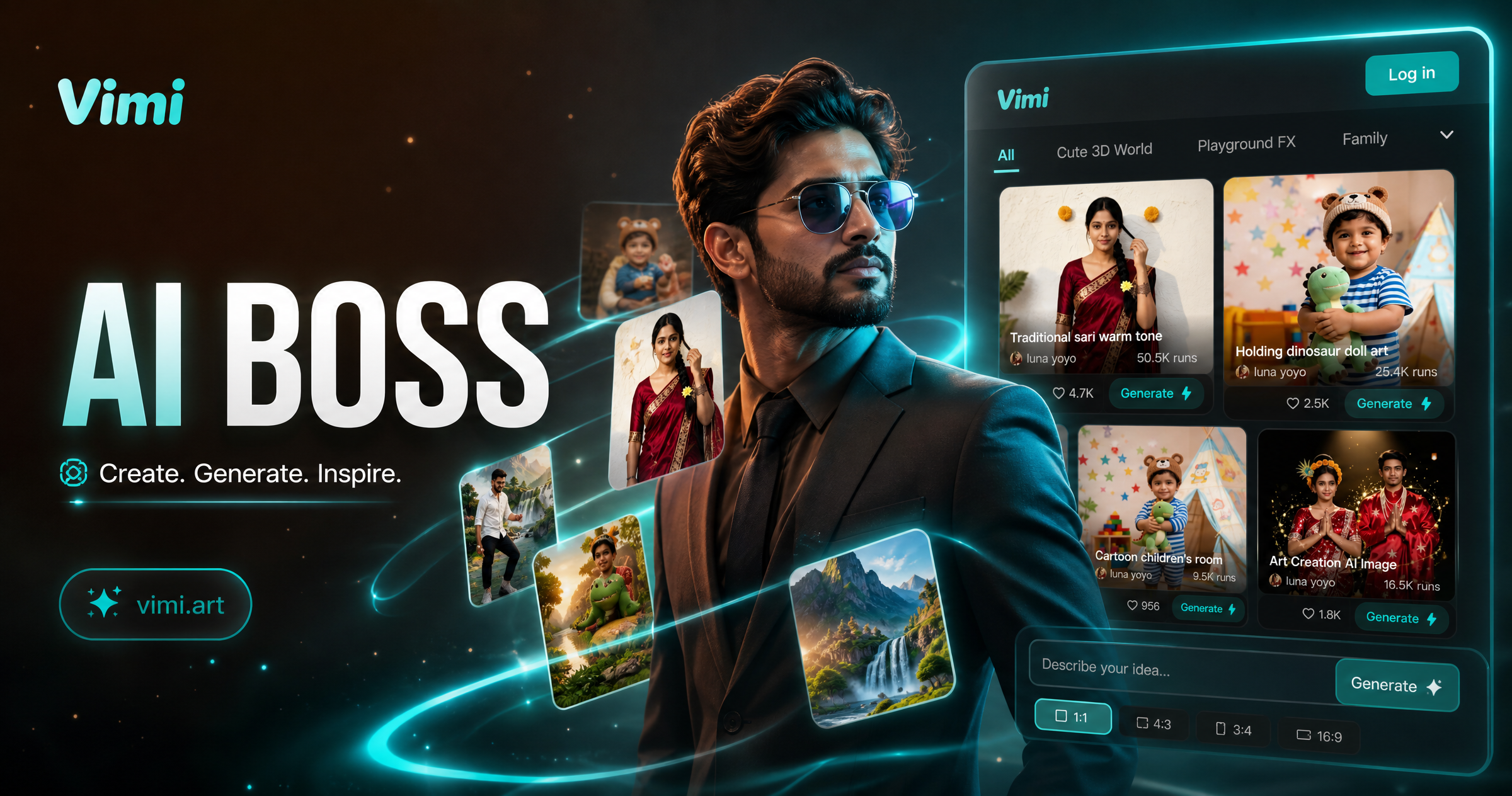
Vimi AI Boss Generator: Create Professional Boss Portraits In Minutes
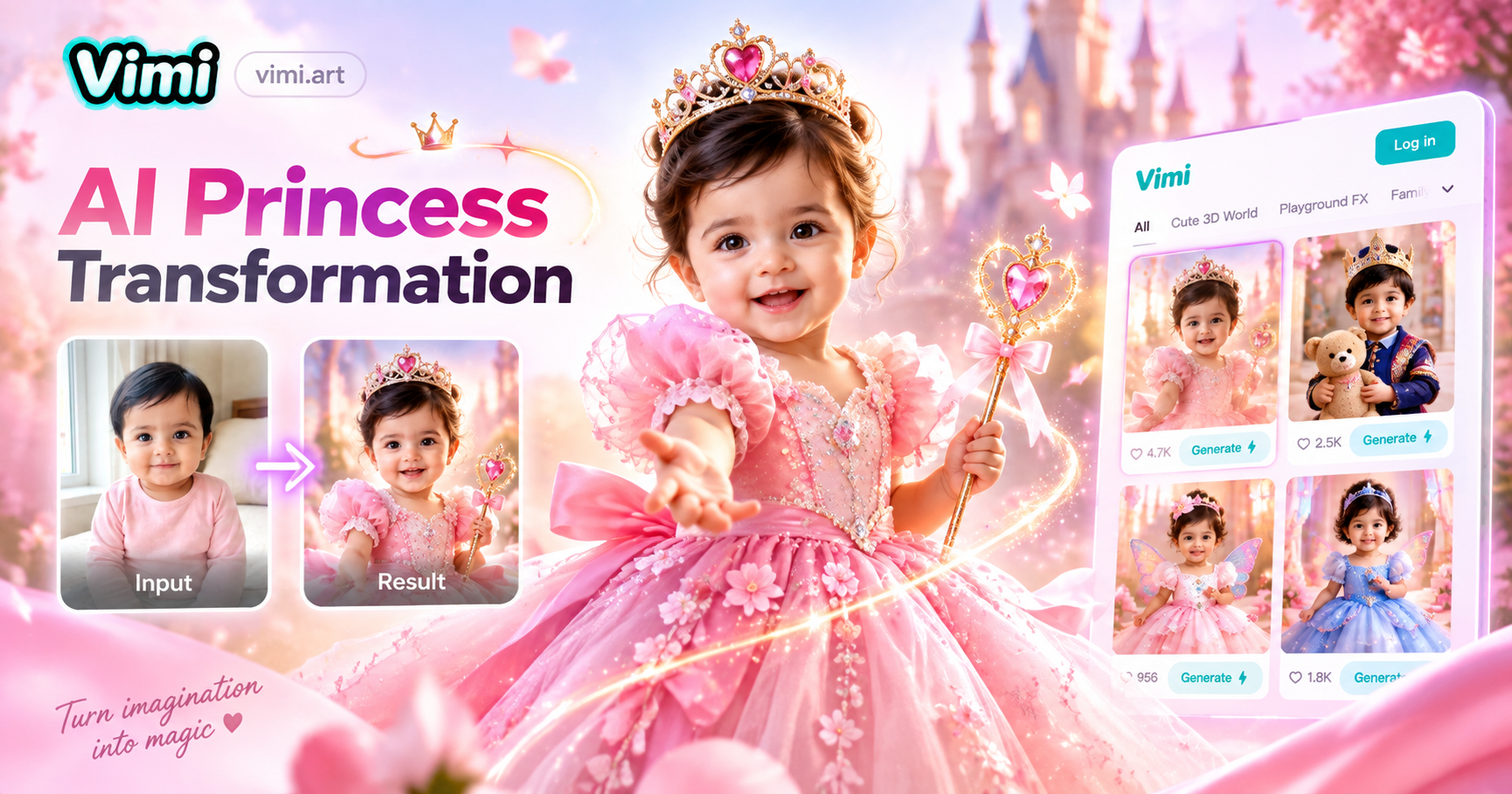
AI Princess Dress Transformation: Turn Photos into Royal Looks with Vimi
Vimi AI Group Dance Generator: Turn Group Photos Into Dance Videos
AI Viking Warrior Filter: Create Norse Warrior Portraits in Vimi
Vimi AI Boss Generator: Create Professional Boss Portraits In Minutes
AI Princess Dress Transformation: Turn Photos into Royal Looks with Vimi
Create Your Time Lapse With Vimi
Download Vimi And Start Today.Pick a template, upload a photo, and tap Generate. Save your video and share it with friends.
Create Your Time Lapse With Vimi
Download Vimi And Start Today.Pick a template, upload a photo, and tap Generate. Save your video and share it with friends.