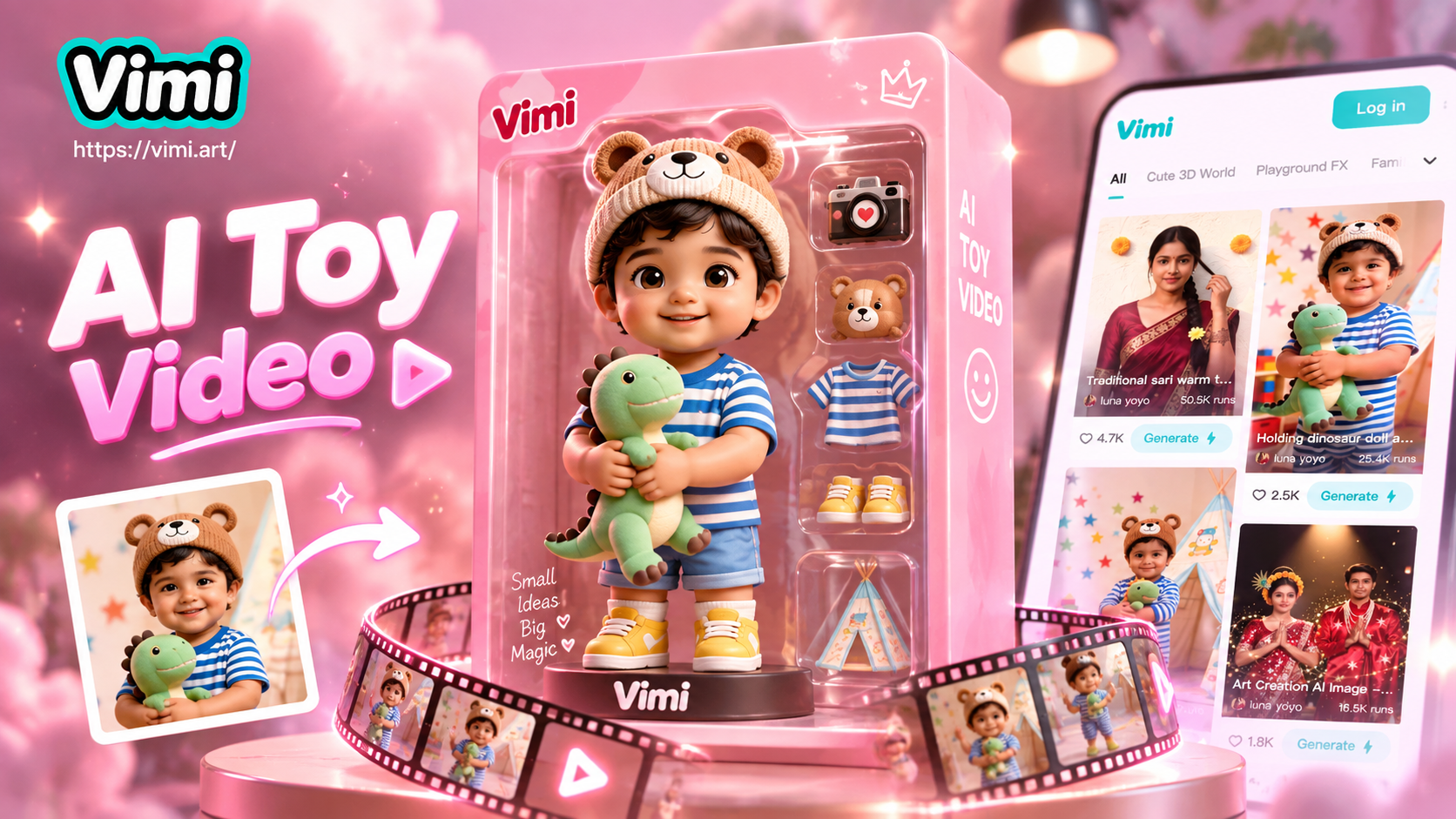
An AI Toy Figure Set Video Effect turns a portrait, pet photo, or character image into a short collectible-style clip. The familiar result is a boxed figure, display card, or mini set that gains a slow turn, a camera push, a hand reveal, or another small movement. The most reliable workflow has two stages: create a clean toy-style still first, then use an image-to-video tool to animate it.
For creators in India, this format works well as a 9:16 Instagram Reel, YouTube Short, or WhatsApp Status. It can show a cricket-inspired collectible, a friend group as a mini set, a family memory, or a creator avatar without requiring a physical 3D model. Vimi's verified AI Miniature Generator is the closest official route: it turns photos into miniature art and videos with toy-like, clay, and diorama styles. Vimi does not currently expose a verified effect page named AI Toy Figure Set, so the guide below uses the miniature route for the look and the Image to Video route when you want extra control over motion.
What the effect actually contains
An AI toy figure set video is more than a face filter. It combines four visual decisions:
- The subject: a single person, pet, couple, or small group with a clear face and body outline.
- The collectible treatment: a stylised figure, blister pack, display base, accessory tray, or product-card layout.
- The motion: a restrained turn, tilt, push-in, hand reveal, or unboxing gesture that gives the still image a beginning and an end.
- The destination: a vertical social clip, a square profile post, or a horizontal presentation clip.
The toy still and the animated clip should be planned separately. Text printed inside an AI-generated package can be misspelled or warped, so add names, prices, dates, school names, and captions in a separate editor after the motion is created. Keep packaging generic unless you have permission to use a real brand, logo, character, or sports-team mark.
What Vimi can do for this workflow
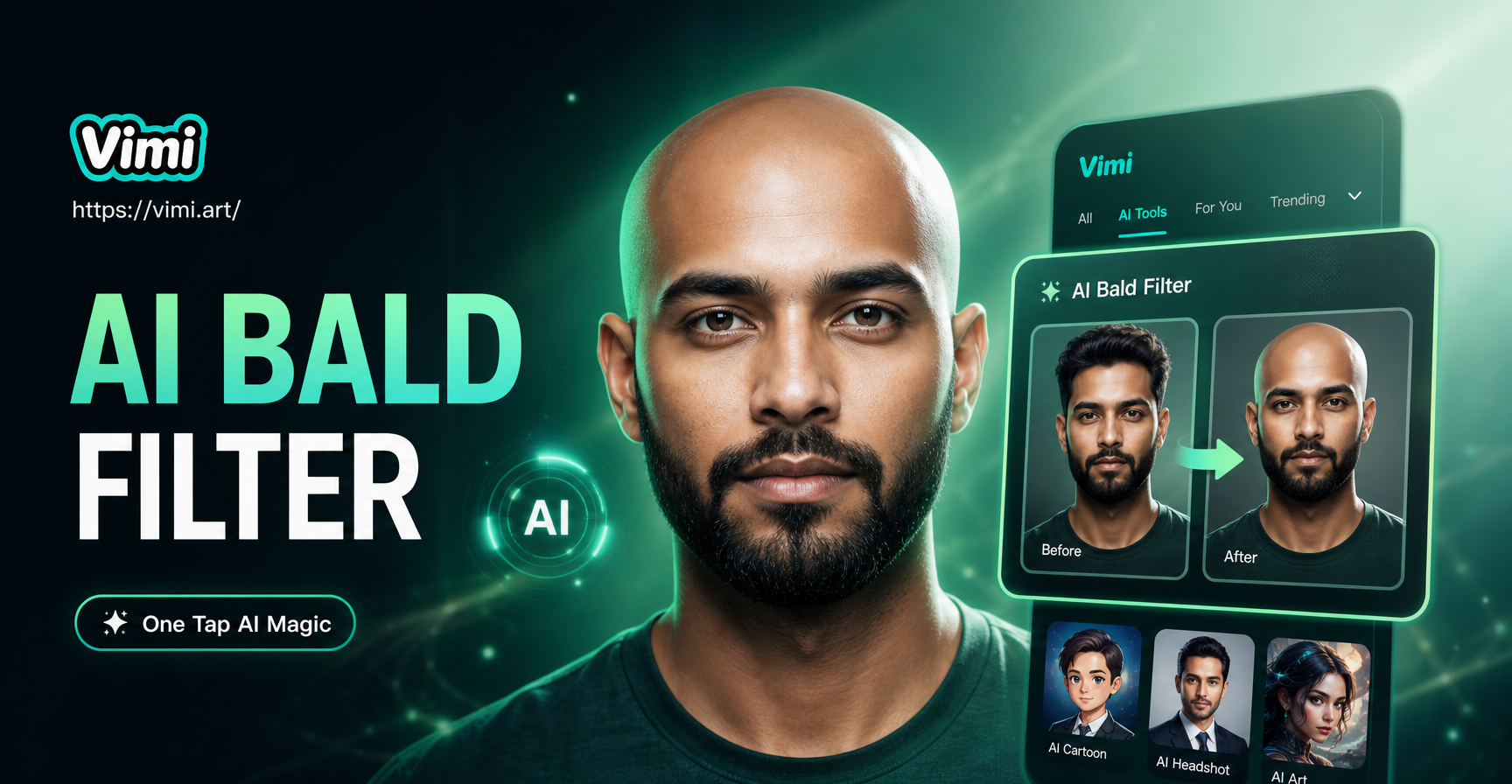
Vimi's AI Miniature Generator is the most relevant starting point. Its public page says you can choose a miniature style, upload a photo, and generate miniature images or videos without writing a prompt. The page mentions toy-like, clay, and diorama looks, multiple people, mobile use, and one-tap social sharing. It also shows a vertical example labelled Miniature family of three Indian people, which is a useful reference for an India-facing family set.
When you want a more deliberate camera move, Vimi's Image to Video AI effect says it can turn photos into dynamic AI videos with natural motion, expressions, and mobile-friendly templates. Its page shows a simple path of downloading the app, choosing a filter, creating the video, and downloading or sharing it. Use the miniature effect alone for a quick toy-like result, or send a prepared miniature still through Image to Video for a second pass.
The AI Video Generator page also describes text-to-video and image-to-video use cases. Use it when you want to explore a broader scene or combine an image with a written idea. If you want a blocky avatar before animating it, Vimi's Minecraft PFP Generator is an adjacent still-image option. It creates a Minecraft-style profile picture; it is not the same as a toy figure set video effect, so animate that output separately through an image-to-video path.
At the time of this guide, the supplied Vimi pages do not expose a stable, dedicated AI Toy Figure Set effect URL. That distinction matters: describe the result as a toy-like or miniature workflow, and check the live effect library before calling it a fixed one-click toy-box template.
How to make the effect with a photo
1. Choose one clear source photo
Use a high-resolution image with one obvious subject, even lighting, and a visible face. Vimi's Image to Video FAQ recommends high-resolution photos with clear subjects for animation. A front-facing portrait, three-quarter pose, or full-body photo is easier to turn into a figure than a cropped selfie with hair or hands covering the face.
For a family or friend set, use one consented source image per person when possible. Decide the number of figures before generating the still. If the group becomes crowded, split it into two clips instead of forcing every person into a tiny package.
2. Create the toy-style still
Start with Vimi's AI Miniature Generator if a toy-like or diorama template matches the story. Pick the closest miniature style, upload the source photo, and generate the image or video. The page says no prompt writing is required, so this is the fastest route for a family, couple, or single-figure concept.
If you need a custom collector box, accessory tray, or exact composition that the live Vimi templates do not provide, use an image generator or design tool that accepts a reference photo. The following prompt is a starting point for that separate still-making step, not a Vimi feature claim:
Create a collectible toy figure set based on the uploaded subject. Show a full-body stylised PVC figure in a clear display blister with a simple base and three small accessories that reflect the subject. Use clean studio lighting, realistic molded details, a neutral background, portrait 9:16 composition, and enough empty space around the package. Preserve the person's recognizable face, hairstyle, skin tone, and clothing colors. Use generic packaging with no brand logos, no copyrighted characters, and no small readable text.For an Indian audience, change the accessories and styling rather than copying a commercial franchise. Examples include a cricket bat and ball without a team logo, a notebook and campus ID with no real institution name, a sari or kurta color palette, or a family picnic accessory set. Keep the cultural cue purposeful and let the person remain the focus.
3. Prepare the frame for motion
Crop the still before uploading it. Leave a margin around the package, keep the face away from the edge, and remove tiny text that will only flicker during animation. A clean background gives the motion model fewer objects to reinterpret. Save an uncropped master so you can make a separate 4:5 or 1:1 version later.
4. Animate the still in Vimi
If the miniature template already produces the movement you want, download that result and continue to the review step. For a more deliberate reveal, open Vimi, choose the Image to Video route, and upload the prepared miniature still. Select the closest motion or cinematic template available in the live app. If the selected template accepts a motion prompt, keep it conservative:
Animate this collectible figure as a short product reveal. Use a slow camera push-in, a gentle package tilt, and a small turn of the figure. Keep the face, hands, accessories, package edges, and background stable. Do not add new people, extra limbs, logos, or readable text. End on a clean front view. Use a smooth 4-6 second motion suitable for a vertical social video.If the interface only offers preset filters, choose the least aggressive camera movement and let the still carry the visual idea. Vimi's public pages describe natural motion, blinking, smiling, and mobile-friendly templates; they do not guarantee that every preset will preserve tiny package lettering or complex group poses.
5. Inspect the first and last frames
Check the face, fingers, package corners, accessory count, and background before sharing. A short clip can look convincing in the middle and still fail on the first or last frame. Regenerate with a simpler motion if the figure melts, the camera spins too quickly, or the package gains an invented logo. For a group set, check every person separately.
6. Add text and export
Add the title, handle, school or family name, and call to action in a layout editor after the animation is ready. Keep text in clear negative space and export a clean master before making platform-specific copies. Preview the result on a phone, where small package details and captions are easiest to lose.
Three India-ready creative directions
A single collectible character
Use one portrait and three meaningful accessories: a camera for a creator, a bat and ball for a cricket fan, or books for a student. A plain backing card makes the motion easy to read. Avoid a real team crest or celebrity likeness unless you have the relevant rights.
A couple or friend mini-set
Place two figures in the same package with separate accessory compartments. Use a gentle side-by-side turn rather than a fast spin, and keep each face large enough to inspect. This works for a birthday Reel, a travel memory, or a matching profile-video series.
A family memory set
Use two or three family members with a shared visual cue, such as a picnic basket, a camera, or a book. The result is a creative memory scene, not evidence that the family stood inside a toy box. Tell the people shown that the image is AI-assisted before posting it publicly, and do not use it to document an event that never happened.
Pick the output shape before you generate
- 9:16: Instagram Reels, YouTube Shorts, and WhatsApp Status. Keep the package and caption inside the central safe area.
- 4:5: Instagram feed posts. Leave headroom for a short title and keep the figure away from the crop edges.
- 1:1: Profile posts, square cards, and a compact preview. Use one figure or a tight two-person set.
- 16:9: A YouTube intro, presentation slide, or website banner. Use a wider still and place text away from faces and package edges.
Troubleshooting: when the toy video looks wrong
- The face changes: switch to a clearer source, reduce the camera movement, and avoid adding several new actions at once.
- The package text is unreadable: remove generated micro-copy and add the final wording later in a layout editor.
- The box gets extra accessories: describe only the objects you need and keep the background simple.
- A group merges together: use fewer figures, larger source faces, and one image per person where possible.
- The motion feels chaotic: choose a push-in, tilt, or small turn instead of a full orbit or dance.
- The style looks like a real advertisement: remove brand-like marks and label the clip as AI-assisted when viewers could mistake it for a real product.
Consent, rights, and current terms
Get permission before uploading someone else's portrait, especially for children, classmates, colleagues, or customers. Use photos, logos, packaging references, and music that you are allowed to use. Do not imply that a generated collectible is an official product, school event, sports-team asset, or celebrity endorsement.
Vimi's public pages describe image-to-video and social sharing use cases, but the exact credits, pricing, export limits, and commercial-use rules can change. Check the current Vimi terms before using the clip in paid promotion, client work, or a product listing. This guide does not promise commercial authorization or a particular output quality.
Frequently asked questions
Does Vimi have an AI Toy Figure Set Video Effect?
No dedicated Vimi effect page with that exact name was verified for this guide. The closest official route is AI Miniature Generator, which offers toy-like and diorama-style image/video templates. Use it directly, or pass its still result to Image to Video for a more controlled reveal. Check the live effect library in case a new named template has been added.
Do I need a 3D model?
No. The workflow starts with a still image that looks like a collectible. A well-lit reference photo and a simple package composition are usually easier to animate than a busy 3D scene, but the final result still needs a frame-by-frame check.
What kind of photo works best?
Use a sharp, high-resolution image with a clear subject and unobstructed face. A single subject is the safest starting point. For groups, use fewer people, larger faces, and separate consented source images where possible.
Can I share the video on Instagram or YouTube Shorts?
Vimi's Image to Video page explicitly discusses social video creation for platforms such as Instagram and YouTube Shorts. Export a vertical master, preview it on a phone, and follow the current rules of the platform where you post. WhatsApp Status is a sensible 9:16 destination, but treat the export as an editorial recommendation rather than a Vimi specification.
Is Vimi free and can I use the result commercially?
The live Image to Video FAQ currently says that a free account receives daily credits and that premium plans may apply. Terms can change, and the supplied product brief does not provide a commercial-use guarantee. Check the current pricing, credits, and rights language on Vimi before publishing paid or client work.
An AI Toy Figure Set Video Effect works best when the still image, motion, and destination are planned as one small story. Build a clean collectible frame, animate it gently with Vimi's photo-to-video workflow, then add accurate text and rights-safe details in a separate editor. For the next step, try Vimi with a photo you have permission to use.