Add Christmas Santa To Photo
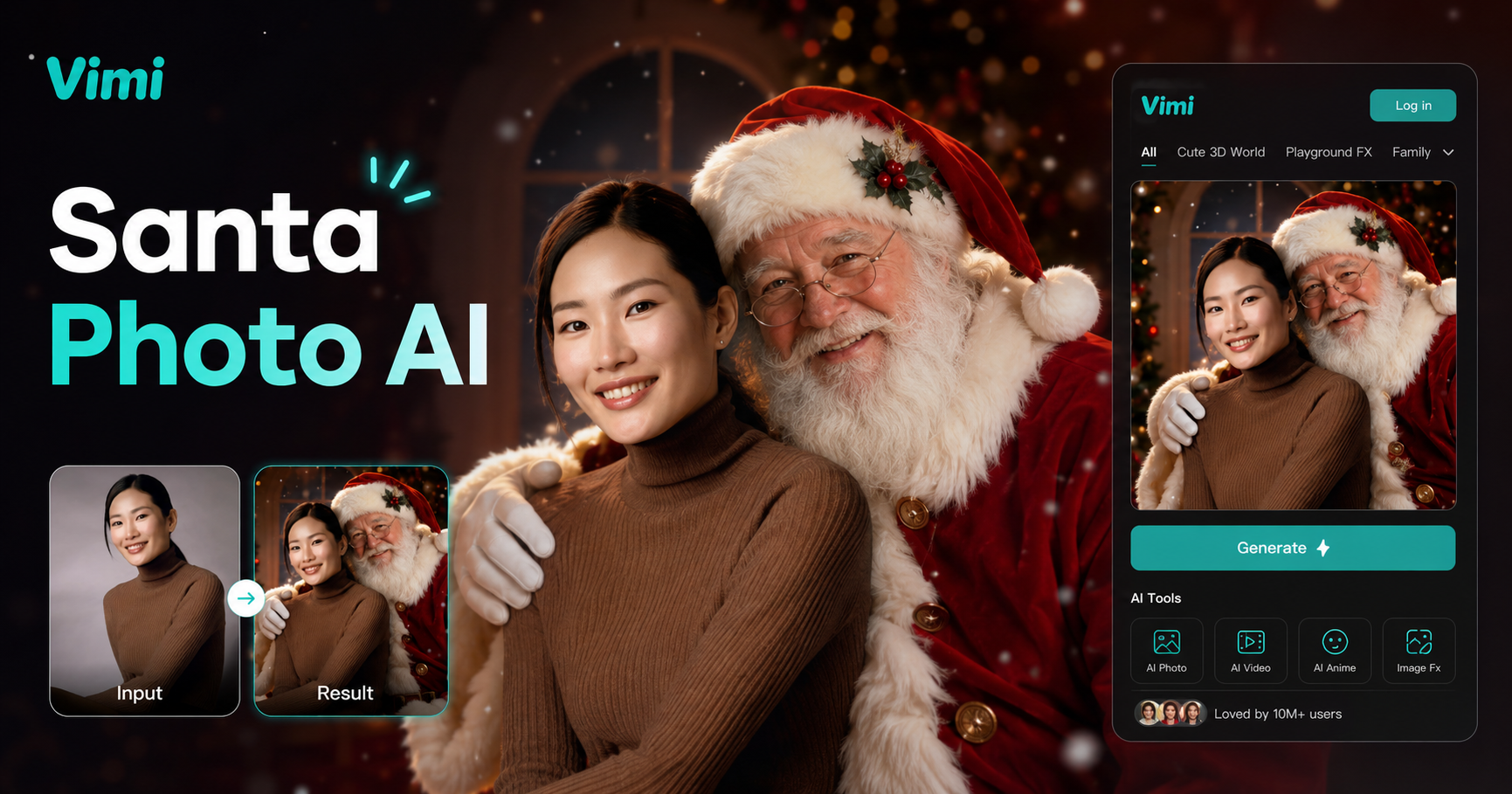
Capture Your Santa Photo (fork)

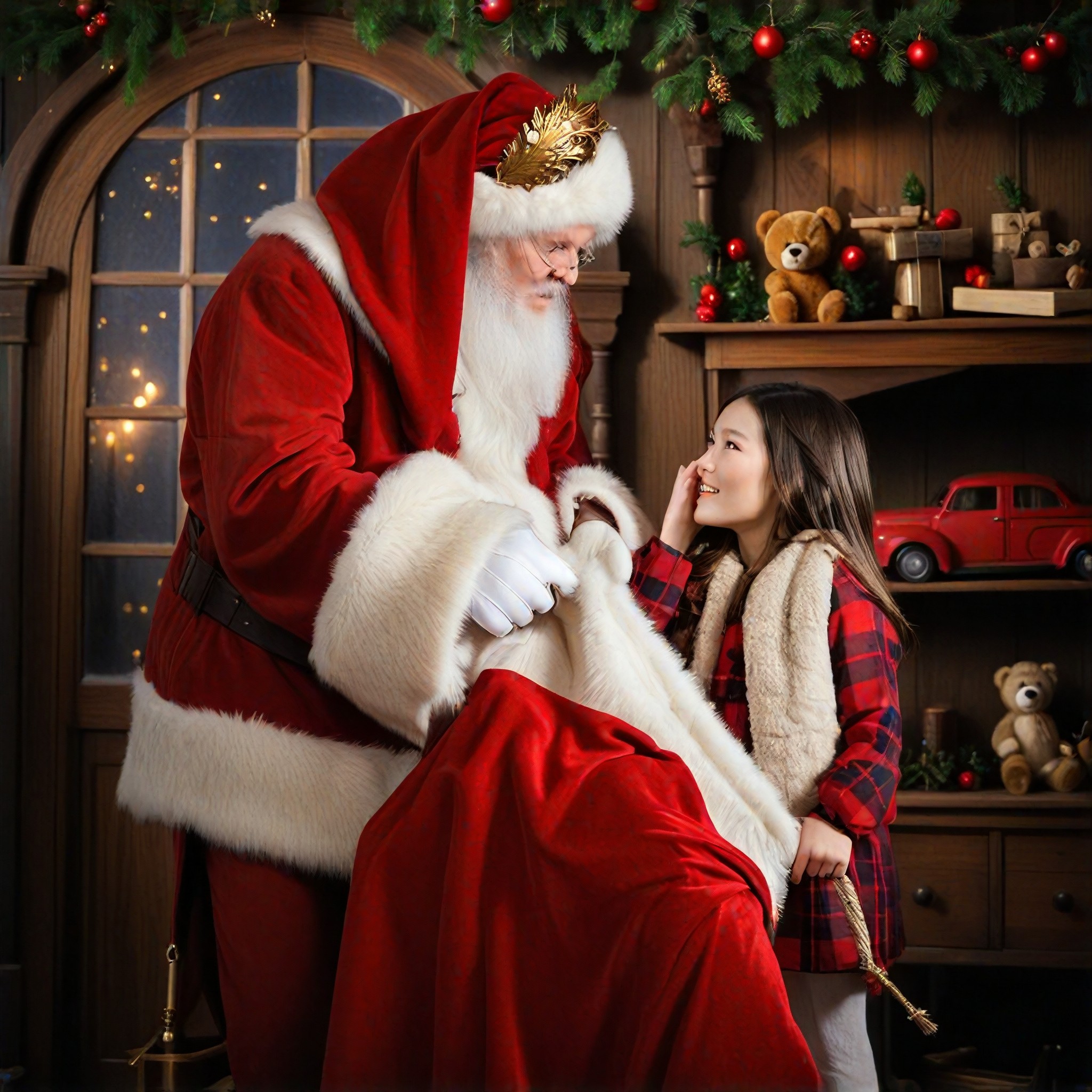


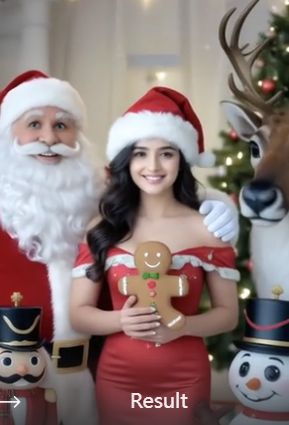
Add Christmas Santa To Photo With One Tap
Access Vimi Santa templates or upload your own reference. Pick a Santa pose, add your photo, and Vimi places Santa next to you or your family. No editing skills required.
How to Use Vimi to Add Christmas Santa To Photo?
Open Vimi. Pick a Santa style. Upload your image. Save within seconds. No photo editing experience required.
Step 01.
Get Vimi from Google Play. Install takes under one minute.
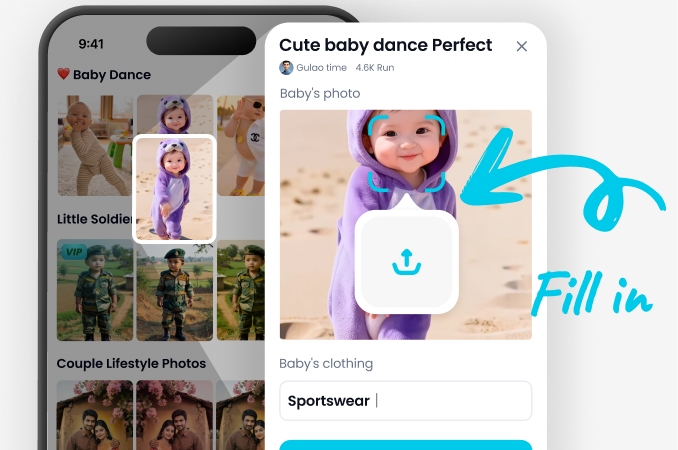
Step 02.
Open Vimi. Search Add Christmas Santa. Pick a pose. Upload your photo. Tap Generate.
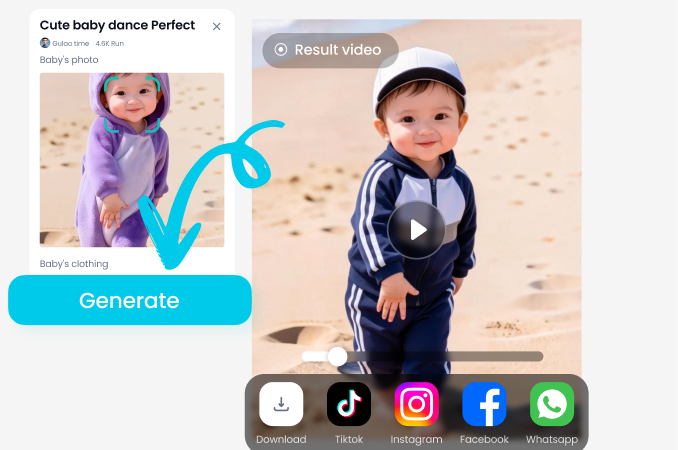
Step 03.
Wait seconds. Preview. Tap Download to social media platforms or publish to your Vimi profile.
Explore How Vimi Add Christmas Santa To Photo Brings Holiday Joy
Find the way to put Santa into your photos without any editing skills. Choose a holiday template, upload a photo, and Vimi places Santa next to you or your family in seconds.
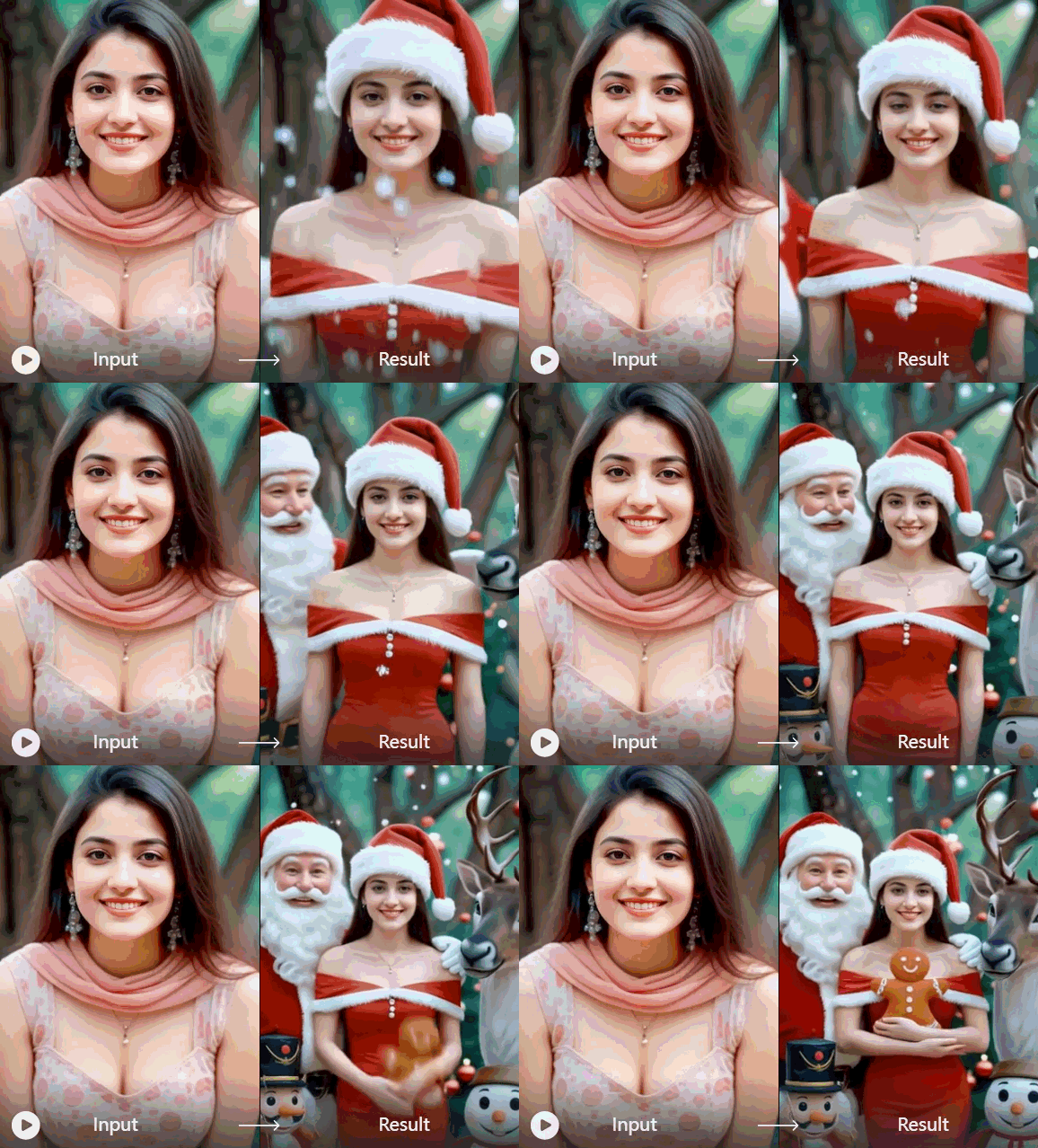
Christmas Holiday Cards
Upload one of your photos. Pick a Santa standing next to you. AI matches Santa's height and shadow direction to your photo's lighting. Output works for printed cards or email greetings. No green screen needed.
Christmas Holiday Cards
Upload one of your photos. Pick a Santa standing next to you. AI matches Santa's height and shadow direction to your photo's lighting. Output works for printed cards or email greetings. No green screen needed.
Frequently Asked Questions
Find clear answers to common questions and get the guidance you need to make the most of our platform, faster and easier.
More Topics You May Like
Explore more topics you may like and discover fresh ideas tailored to your interests.

Couple Mirror Selfie

World Cup Baby Effects

Ai Digital Avatar Generator

Ai Raksha Bandhan Card Design Generator
Couple Mirror Selfie
World Cup Baby Effects
Ai Digital Avatar Generator
Ai Raksha Bandhan Card Design Generator
Create Your Holiday Santa Photo Now
Download Vimi. Add Santa in 10 seconds. Share holiday cheer. Save as a card, post online, or surprise your kids.
Create Your Holiday Santa Photo Now
Download Vimi. Add Santa in 10 seconds. Share holiday cheer. Save as a card, post online, or surprise your kids.